Salesforce Health Check Signs Your Org Needs an Audit
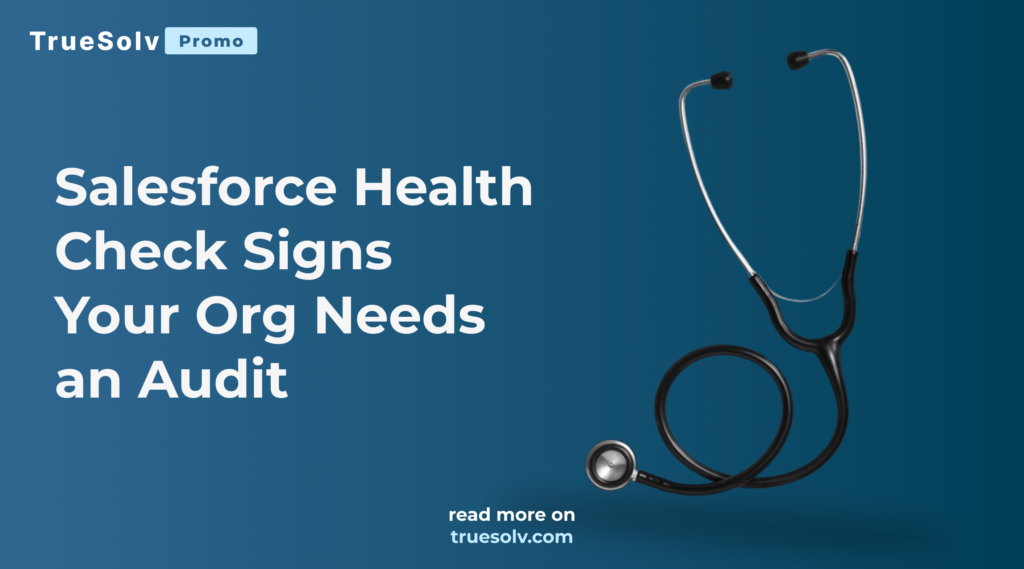
The org keeps growing, automations keep piling up, and nobody has reviewed access permissions in years. You know an org needs a Salesforce Health Check when the same handful of symptoms start showing up together. Reports that give a different number depending on who pulls them. Permission sets nobody remembers granting. Flows nobody wants to touch because nobody is sure what they’d break. If two or three of those sound familiar, the org is already overdue. INSIDE THE ORG ! Unused field ! Orphaned Flow ! Permission creep ! Duplicate records Health Check HEALTH CHECK REPORT Security & access Data quality Performance & scale Org structure Licenses & contracts Integrations & API Six domains, one report, no guessing what’s actually wrong. Four warning signs inside the org — one six-domain Health Check report that names every one of them. What an unaudited org tends to look like Custom fields nobody remembers the purpose ofStill sitting on every page layout, slowing down load times, and appearing on reports where they were never meant to. Orphaned Flows referencing deleted objects or fieldsActive automations pointing at things that no longer exist — running silently, failing silently, or doing nothing at all. Permission sets that have grown broader with every hire and never been trimmedThe easiest fix at onboarding time becomes a security exposure the moment someone changes roles or leaves the company. Duplicate records quietly skewing every report that touches themTwo records for the same account mean two pipelines, two activity histories, and one number nobody fully trusts. Why this is a risk now, not a someday problem None of this happens on purpose. It happens because Salesforce is flexible enough to absorb years of quick fixes without ever forcing a cleanup, so the org keeps working just well enough that nobody schedules the review. A former employee with an active login is a live exposure the moment they leave, not a theoretical one. Reports that take too long to load or automations that quietly conflict cost real working hours every single week, not just at renewal time. The longer the mess sits, the more new work gets built on top of it, and the more expensive the eventual cleanup gets. What a Salesforce Health Check covers A TrueSolv Health Check reviews six domains in one pass: Security and access controls. Data quality and management. System performance and scalability. Org structure and customization. License and contract usage. Integrations and API health. The client walks away with a findings report running twenty to forty pages, each issue rated by severity with a plain language explanation and a specific fix. An executive summary condenses the top priorities for anyone who wasn’t in the weeds. An action item list with effort estimates plugs straight into a sprint, and a quick wins checklist flags what an admin can fix the same afternoon. The org keeps working just well enough that nobody schedules the review. That’s what makes the mess expensive — it compounds every week you don’t look at it. Run the free Salesforce Health Check self-assessment for an instant score, or book the full audit through the contact form. Follow TrueSolv on LinkedIn for more org cleanup notes. Salesforce Health CheckSalesforce SecurityCRM AuditSalesforce AdminTrueSolv Share: LinkedIn Twitter / X Copy link In this article 01What an unaudited org looks like 02Why this is a risk now 03What the Health Check covers 6 audit domains 🔐Security & access 🗄️Data quality ⚡Performance & scale 🏗️Org structure 📋Licenses & contracts 🔌Integrations & API Not sure where the org stands? Book the full six-domain audit or run the free self-assessment for an instant score. Book the Health Check → About the Author ST Sergey TrusovCEO & Salesforce Architect at TrueSolv
Salesforce Flow Best Practices Before Automation Breaks
Flow runs fine for months, then fails at the worst possible moment — usually right before a reporting deadline. Following Salesforce Flow best practices means catching the handful of patterns that quietly turn a working automation into a liability, well before that automation is the thing standing between your team and a Monday morning report. Most flows don’t fail because Salesforce changed something. They fail because small shortcuts from setup day were never cleaned up. That’s the part admins tend to miss. A flow that ran cleanly in testing keeps running cleanly for weeks, sometimes months, because the exact conditions that break it haven’t happened yet. Then record volume spikes, or someone adds a second automation on the same object, and the whole thing falls over in front of the one person checking the pipeline report an hour before a leadership meeting. SALESFORCE FLOW / RISK PATH DML in a loop No fault path Hardcoded Id Duplicate trigger No test coverage Audited & stable Quarterly audit checklist Flow Trigger Explorer reviewed for every multi-automation object Every flow has a fault path connected, none left as a dead end Error emails route to an active admin, not a former employee Five risk points on the path from a working flow to an audited, stable one. Five signs a Flow is overdue for a look 1DML or SOQL inside a loopUpdating or querying records one at a time inside a loop is the fastest way to hit governor limits once record volume grows past what it looked like in a sandbox. 2Missing fault pathsA flow with no error handling doesn’t fail quietly. It fails loudly, usually by leaving a record half updated with no trace of what went wrong. 3Hardcoded record IDsAn ID copied in during testing works fine until the flow moves to a new org or the referenced record gets deleted, then it breaks with no obvious cause. 4Duplicate triggers on the same objectTwo flows, or a flow and an Apex trigger, both firing on the same object update can create conflicting logic, race conditions, or updates that quietly overwrite each other. 5Zero test coverage on related ApexAny Apex tied to the automation with no meaningful test coverage is a change nobody can safely make without breaking something else first. How to actually find these before they find you Flow Trigger Explorer, inside Setup, shows every flow and trigger firing on a given object in one place, including the order they run in. That order is where duplicate or conflicting automation usually hides, since two flows updating the same field rarely announce themselves until you see them listed side by side. Debug logs fill in the rest. Turning on debug logs for a user who regularly triggers the flow in question, then reading through what actually fired during a normal transaction, tends to surface loop-heavy DML and missing fault paths faster than reading the flow canvas alone. A flow can look fine on screen and still be doing something expensive every time it runs. A checklist worth running on a schedule Salesforce Flow audit checklistRun this on a schedule — quarterly is enough for most orgs Pull up Flow Trigger Explorer for every object with more than one active automation Confirm every flow has a fault path connected, not left as a dead end Search flow elements for hardcoded IDs left over from testing Check for DML or SOQL sitting inside a loop element Confirm Apex tied to automation has real test coverage, not just enough to pass deployment Make sure flow error emails route to an active admin, not someone who left the company last year None of this takes long to check. It takes almost no time at all to skip — which is exactly how an automation that ran fine for a year ends up failing the week a board report is due. If a full pass through your org sounds like more time than your week has, send it our way through the contact form. A Salesforce Health Check covers Flow and automation health as one of six audit areas, alongside security, data quality, and performance, so you get the full picture instead of just the flows that happened to break first. Salesforce FlowSalesforce AdminAutomationSalesforce Health CheckCRM Best Practices Share: LinkedIn Twitter / X Copy link In this article 015 signs a flow needs a look 02How to find problems first 03Audit checklist 5 flow risk patterns DML or SOQL inside a loop Missing fault paths Hardcoded record IDs Duplicate triggers on same object Zero Apex test coverage Where to look in Setup 🔍Flow Trigger Explorer 🪲Debug logs — live user 📋6-item audit checklist About the Author DK Dilyara KolesnikovaSalesforce Developer & Technical Writer at TrueSolv
Hire a Salesforce Admin or Stay With a Partner?
At some point between 25 and 50 employees, almost every SaaS company asks the same question: do we hire a Salesforce admin, or do we keep working with a partner? It sounds like a resourcing question. It is actually a maturity question. And getting the answer wrong in either direction costs money, time, and six months of technical debt that lands on whoever comes next. Here is the framework for making that decision deliberately rather than reactively. Factor In-house admin Salesforce partner Hybrid model Primary work type Operational — reports, users, data cleanup, routine flows, responding to business requests daily Architectural — new objects, integrations, Agentforce, data model redesign, CRM migration Both simultaneously — admin handles daily operations; partner handles quarterly project work Team size signal 25–50+ employees generating 8–12+ consistent admin tickets per week filling 75%+ of a full-time role Under 25 employees, or project-based Salesforce needs that don’t fill a full-time role consistently 40–100 employees where daily operations and quarterly architectural projects co-exist without clean separation Org documentation Org is well-documented — new admin can understand decisions made before they arrived Org undocumented or partially documented — partner can produce documentation as a deliverable before the admin hire Documented enough for daily admin; partner handles architecture decisions that require deeper platform knowledge Business context value High — admin who knows the business deeply diagnoses problems faster and avoids well-intentioned changes that don’t match reality Lower — partner needs context per project and works better on scoped work where requirements can be specified upfront Admin provides business context for daily requests; partner applies platform depth to defined project scope Typical annual cost $80K–$120K salary + benefits + management overhead $28K–$44K for 4 substantial projects at 40 hours each at $175–$275/hr $55K–$80K admin salary + $15K–$25K annual retained partner — total often less than senior admin alone When this works best Stable org that needs consistent daily availability more than platform depth Orgs where Salesforce work is project-based and architectural depth matters more than business context Orgs where the types of work are genuinely different and the division of responsibility is explicitly defined The case for hiring in-house sooner An in-house Salesforce admin makes economic sense when the Salesforce work is primarily operational — the org is stable, well-documented, and requires ongoing maintenance rather than architectural change. The specific tasks that benefit from an in-house resource are report building, user management, data cleanup, routine flow modifications, and responding to user requests in real time. The value that an internal resource adds that a partner cannot replicate is business context at low latency. An in-house admin who has sat in two dozen pipeline reviews understands why a field exists, why a certain report is broken differently than it looks, and what the revenue team actually means when they say “the CRM is wrong.” The breakeven for an in-house hire typically occurs when the org is generating more than eight to twelve admin tickets per week with enough consistency that the work fills 75% or more of a full-time role. Below that threshold, the cost per ticket is lower with a partner. The case for staying with a partner longer A Salesforce partner makes economic sense when the Salesforce work is project-based and architectural: building new objects and relationships, configuring third-system integrations, deploying Agentforce or other AI capabilities, migrating from another CRM, or redesigning the revenue operations data model. These are not tasks that benefit from low-latency business context. They require Salesforce depth — knowledge of how the platform behaves at implementation boundaries, what breaks in governor limits, how the data model will perform at scale, and what the configuration choices made today will cost in flexibility six months later. A senior Salesforce consultant at a partner firm costs $175 to $275 per hour. Four substantial architectural projects per year at 40 hours each totals $28,000 to $44,000. A senior in-house admin costs $80,000 to $120,000 per year in salary plus benefits. For companies doing four projects per year with mostly operational maintenance in between, the partner model is often less expensive — even before accounting for the depth differential. The three mistakes most SaaS companies make Mistake 1: Hiring an admin to fix a problem that requires an architect The presenting symptom is “our Salesforce is broken.” The actual problem is that the data model does not reflect how the business works, the integrations are unreliable, or the objects were configured for a different business model than the current one. Hiring a mid-level admin to fix an architectural problem produces months of workarounds that make the underlying problem harder to fix later. Mistake 2: Paying an architect-level partner for admin tasks The reverse problem: a company stays with a sophisticated Salesforce partner after the org stabilises, paying project rates for report building, user management, and minor flow modifications that any mid-level admin could handle. This often happens because the decision to hire was never formally revisited. The partner was right for the implementation phase; staying with them indefinitely for operational maintenance is a default, not a decision. Mistake 3: Treating the decision as permanent The right answer at 30 employees is rarely the right answer at 80 employees. The maturity of the org, the complexity of the Salesforce environment, and the ratio of architectural to operational work all shift as the company grows. A decision made correctly at one stage needs to be revisited at the next one. Three diagnostic questions to answer before deciding Three diagnostic questions before making the decisionAnswer all three honestly — not aspirationally 1What is the primary type of Salesforce work needed in the next six months?New objects, integrations, Agentforce configuration, or data model changes = architectural work. Reports, users, data hygiene, flow tweaks = operational work. Be honest about which is primary, not which you aspire to be doing.→ Primarily architectural: partner. Primarily operational: in-house. Both significantly: hybrid. 2What is the current state of org documentation?An undocumented org transferred to a new in-house admin
Salesforce Report Step-Up MFA
Starting July 1, your Salesforce users will be prompted to verify their identity every time they open a report. Not when they export it. Every time they open it. Every 120 minutes by default. If nobody on your team knew this was coming, Monday morning answered that question with a support queue. Here is what it is, why Salesforce introduced it, and what admins need to configure — including the setting most documentation skips. ⚡ SalesforceReports → Q2 Customer Pipeline Report content loading… 🔐 Verify your identity to view this report Salesforce requires identity re-verification to access reports. This prompt appears every 120 minutes by default. 📱Salesforce AuthenticatorTap the notification in the app 🔑Security KeyInsert and touch your key Verify with Salesforce Authenticator No enrolled method? You’ll receive a one-time code by email or SMS instead. This prompt is expected — not a security incident. All Salesforce users now see this every 120 min when accessing reports. Interval is configurable by your admin. What step-up MFA on reports actually means Step-up MFA is a secondary verification that fires when a user reaches a high-risk surface, even if they already authenticated with MFA at login. In this case, the trigger is any Salesforce report — opening it, not exporting it. The prompt appears before the report loads. The default re-verification window is 120 minutes. After a user verifies, they can open reports freely for 120 minutes before the prompt returns. This is configurable — which is the part most admin documentation understates. For users already enrolled in an MFA method, the step takes 15 to 30 seconds. For users with no enrolled method, the system falls back to email or SMS one-time passcode. If that also fails, the user cannot open the report at all. This applies to all internal orgs platform-wide, live since July 1. Why Salesforce introduced it Reports are the highest-risk data surface in most Salesforce orgs. A user with View All Data can navigate to the Reports tab, open a standard contact report, run it unfiltered, and export 50,000 records to a spreadsheet in under two minutes. The exported file leaves Salesforce with no record that it happened unless a Transaction Security Policy was in place. The step-up MFA requirement is specifically about the gap between “authenticated at login” and “accessing a surface that enables bulk data extraction.” Login MFA proves identity when a session starts. Step-up MFA proves continued identity at the moment of high-risk data access. What admins need to do now — four steps Report Step-Up MFA — Admin ActionsLive July 1 1Communicate to all report users before they discover it themselvesWithout context, users interpret the verification prompt as a security incident, phishing attempt, or system error. A one-paragraph internal message — what the prompt is, why it appears, what to do if it fails, who to contact — prevents a wave of support tickets and builds trust rather than confusion. 2Verify all active users have an enrolled MFA methodSetup → Identity → Identity Verification. Add MFA enrollment status column to your user list view. Users without any enrolled method fall back to email or SMS OTP. If that also fails — no mobile number registered, slow email delivery — they cannot open reports. Reach out to unenrolled users directly. 3Configure the re-verification interval for your team’s workflowThe 120-minute default is adjustable and most documentation skips this. Find it at: Setup → Identity → Session Settings → High-Assurance Session Timeout. The setting is org-wide. Consider shorter (60 min) for regulated environments; consider longer (240 min) for teams running reports continuously throughout the day. 4Create a user FAQ covering the four questions that will recurAnswer proactively: what is this prompt, how to enroll an MFA method, what to do if verification fails, and whether the prompt means the account has been hacked. A Chatter post or internal knowledge article takes an hour and replaces dozens of individual support conversations. Configuring the re-verification interval — where to find it Setup → Identity → Session Settings → High-Assurance Session Timeout 60 minRegulated environments — HIPAA, SOC 2, or internal policies requiring shorter session timeouts. More frequent prompts, stronger security posture. Appropriate if your audit requirements specify session limits. 120 minDefault — Salesforce’s chosen balance between security and usability. Suitable for most orgs. Users in standard report workflows will see the prompt once or twice per working day. 240 minHigh-frequency reporting teams — Analytics, operations, and management teams running reports throughout the day who find 120-minute prompts disruptive. One prompt at the start of the work session, one at the end. The setting is org-wide. No per-profile or per-permission-set configuration is available in the current release. One interval applies to all internal users. What this does not affect External users and Experience Cloud community users are not covered by the report step-up requirement in the current enforcement scope. The change applies to internal users accessing Salesforce through the standard internal login path. Reports embedded in Lightning record page dashboards operate differently from reports accessed directly through the Reports tab. The step-up prompt fires when a user navigates directly to a report — not currently when a dashboard component rendering report data is loaded on a record page. This distinction matters for orgs where report data is primarily surfaced through embedded dashboard components rather than the Reports tab itself. Step-up MFA on reports has been live since July 1. If your users have already encountered it, the communication gap already cost you some support tickets. The remaining configuration work — interval adjustment and the internal FAQ — takes less than a day and prevents the same tickets from recurring every time a new user hits the prompt for the first time. Salesforce AdminSalesforce SecurityMFASalesforce Reports Share: LinkedIn Twitter / X Copy link In this article 01What step-up MFA means 02Why Salesforce introduced it 034 admin actions required 04What this does not affect ⚡ Four admin actions Communicate to all report users first Check MFA enrollment for every user
Salesforce Flow Orchestration is Free in Summer 26
Flow Orchestration used to cost extra. Now it does not. Starting with Summer ’26, Flow Orchestration runs are included in Enterprise, Performance, Unlimited, and Developer editions without usage-based limits. If you ruled it out before because of the pricing, that calculation is gone. Here is what Flow Orchestration actually does, and why it is worth a fresh look. What Flow Orchestration actually is A regular Flow handles a trigger and a sequence of automated steps. It runs, completes, and is done — typically in seconds, with no pause for a human to weigh in partway through. Flow Orchestration is built for a different category of process: multi-step, multi-user business processes that require coordination across people, systems, and time. The work needs to pause, wait for a specific person to make a decision, branch based on that decision, and continue — all in a monitored, auditable way, potentially over hours, days, or weeks. The distinction matters because many processes that orgs currently handle through a combination of email, manual task assignment, and someone remembering to follow up are exactly the kind of process Orchestration is built for. The reason most orgs have not built these in Salesforce is that Orchestration previously carried a usage-based cost that made it hard to justify for internal process automation rather than customer-facing workflows. Characteristic Regular Flow Flow Orchestration Duration Runs and completes in seconds. No pause for human input mid-process. Can span hours, days, or weeks — pauses at human steps and resumes when action is taken. Human involvement Limited to triggering the flow or responding to a single approval step bolted on separately. Built-in stages where specific people are assigned tasks, make decisions, and the process branches based on their input. Visibility No persistent status view. Once running, you cannot easily see “where” the flow currently is. Defined stage model — anyone can see which stage a process instance is currently in and who owns it. Multi-department coordination Difficult — typically requires chaining multiple flows and manual handoffs between departments. Native — parallel and sequential stages across different teams with a single coordinated process instance. Best for Record updates, notifications, single-step automations, data validation, immediate actions triggered by a record change. Onboarding processes, approval chains, multi-department workflows — anything where “who does this next and when” is the core challenge. Cost (Summer ’26) Included in all editions, as always. Now free Included in Enterprise, Performance, Unlimited, and Developer editions — no usage-based limits. A simple orchestration, structurally The shape of an orchestration is consistent regardless of the specific process: a system step does something automatically, a human step pauses and waits for a person to act, the orchestration branches based on what that person decided, and the process continues — potentially with more human steps, more branches, and a final system step that records the outcome. A Simple Flow Orchestration — Four Stages Stage 1 System action e.g. create record AUTOMATED Stage 2 Human approval Manager reviews and decides PAUSES & WAITS Stage 3 System action e.g. update fields AUTOMATED Stage 4 Branch → Approved path → Rejected path OUTCOME RECORDED Status, owner, and stage are visible to anyone checking on the process — not just whoever is currently assigned. What makes this different from a Flow with an Approval Process attached is the structure and visibility. Orchestration gives you a defined stage model — each stage has a clear owner, a clear set of possible outcomes, and a status that is visible to anyone checking on the process, not just the person whose turn it currently is. For processes spanning multiple departments, that visibility is often the missing piece. Three workflows worth building now that it is free New employee onboarding across IT, HR, and the hiring manager Onboarding touches multiple departments with sequential and parallel dependencies: IT needs to provision accounts, HR needs to complete paperwork, the hiring manager needs to prepare the first-week schedule, and some of these steps depend on others completing first. An orchestration can sequence IT provisioning after HR confirms the start date, run HR paperwork and manager prep in parallel, and surface a single status view to whoever is coordinating the new hire’s first day. The alternative — the current state at most orgs — is a checklist in a shared document and a series of Slack messages asking whether each step is done yet. Orchestration replaces the asking with visibility. Contract approval chain with parallel legal and finance review A contract above a certain value needs review from legal and finance before it reaches an executive for final sign-off. Legal and finance review can happen in parallel — neither depends on the other — but the executive sign-off step depends on both being complete. Orchestration models this directly: a parallel stage for legal and finance, a convergence point that waits for both to complete, then a sequential executive approval stage. The audit trail shows who reviewed what and when, without anyone needing to track it manually. Deal desk workflow for non-standard pricing approvals Non-standard pricing requests — discounts above a threshold, custom payment terms, non-standard contract clauses — typically need sign-off from sales leadership, finance, and sometimes RevOps, in an order that depends on the specific request. An orchestration can route the request to the right combination of approvers based on the deal characteristics, track where it currently sits, and notify the rep when a decision is made. The business value here is speed: deal desk requests that currently take days because they sit in someone’s inbox move faster when the orchestration actively routes and tracks them, and the rep has visibility into where the holdup is rather than just waiting. 3 Workflows Worth Building Now That Orchestration Is FreeProcesses most orgs currently run on email, shared docs, and hoping someone follows up 👋New employee onboardingIT provisioning, HR paperwork, and hiring manager prep — sequenced and parallelised with a single status view for whoever is coordinating the new hire’s first day.Stages: HR confirms start date
Salesforce Summer 26 Release Features

Salesforce announced Summer ’26 on May 11 and set the general availability date for June 15. The headline: 17 major capabilities, all pointing in one direction. Agentforce is no longer a feature layer on top of the platform. In Summer ’26 it is becoming the operating layer underneath everything else. Here is what actually landed and what it means for your org. Salesforce Summer ’26 — Five Changes That Shape the Platform 🤝Multi-Agent OrchestrationAgents delegate to specialist agentsOne customer-facing contact point, multiple specialist agents working behind the scenes. Triage → delegate → coordinate — without the customer switching interfaces.GA — Summer ’26 ⚡Agentforce Self-ServiceHelp Agent in 10 clicks or fewerDeploy a Help Agent to your public website, Portal, or WhatsApp in a guided setup — designed for teams who want to trial Agentforce without a multi-week implementation.GA — Summer ’26 🛡️Security MeshUnified security fabric + risk scoringDisconnected security alerts across Service Cloud, Sales Cloud, and Experience Cloud unified into a single fabric with AI-generated risk scores. Agentforce activity included.GA — Summer ’26 🔄Flow Orchestration — FreeIncluded in Enterprise and aboveFlow Orchestration moves from a usage-limited add-on to included in Enterprise, Performance, Unlimited, and Developer editions. No usage caps, no add-on cost.Now included 📊Tableau over Model Context ProtocolAnalytics engine exposed to Agentforce agentsTableau’s analytics engine is now reachable by Agentforce agents over MCP, protected by the Agentforce Trust Layer. Agents can query revenue trends, spend analytics, and historical reports as part of their reasoning — without requiring a human to pull the report first. Closes the gap between CRM data and the BI layer.GA — Summer ’26 Multi-Agent Orchestration For most of Agentforce’s history, an agent was a single system handling a single domain. A service agent answered product questions. A sales agent qualified leads. Each worked independently and each required its own configuration. Multi-Agent Orchestration changes that architecture. Agents can now delegate tasks to specialist agents within the same org. One customer-facing contact point, multiple agents working behind the scenes: a triage agent receives the request, determines which specialist — a billing agent, a technical support agent, a returns agent — should handle it, delegates the task, and coordinates the result back to the customer without the customer ever switching interfaces. The practical implication for orgs with complex service or sales workflows is that you can build specialist agents for distinct domains and let orchestration handle the coordination, rather than trying to build one agent that knows everything. Simpler individual agents, more reliable outcomes at the orchestration level. For developers, the build model changes too. Agent teams can be tested and deployed independently. Failures in one specialist agent are contained rather than cascading through the entire interaction. Agentforce Self-Service The barrier to deploying an Agentforce Help Agent drops significantly in Summer ’26. Agentforce Self-Service is a setup path that gets a Help Agent deployed in 10 clicks or fewer — configured, grounded in your knowledge base, and ready to go on your public website, the new Portal experience, or WhatsApp. The positioning is explicit: Salesforce is targeting the orgs that have heard about Agentforce but found the implementation path too complex for their team size or technical capacity. Self-Service is designed to remove that barrier without removing the ability to customise later. For admins at smaller orgs who have been waiting for a way to trial Agentforce without a multi-week implementation project, this is the most directly actionable Summer ’26 announcement. For larger orgs, the Self-Service path is worth understanding as a rapid prototyping route before committing to a full agent build. Security Mesh Security Mesh unifies data sources across the Salesforce platform into a single security fabric and transforms disconnected access logs and alerts into intelligent risk scores. Instead of reviewing separate security events across Service Cloud, Sales Cloud, and Experience Cloud independently, Security Mesh provides a unified view with AI-generated risk assessment. The practical value for compliance-minded orgs is in audit efficiency. Security events that previously required cross-referencing multiple tools to understand their combined significance are now surfaced as correlated risk signals. Additionally, Security Mesh integrates with the Trust Layer that governs Agentforce agents, meaning agent activity is included in the unified risk picture rather than existing as a separate data source. Flow Orchestration now free Flow Orchestration moves from a usage-limited add-on to an included feature in Enterprise, Performance, Unlimited, and Developer editions without usage-based limits. This removes the licensing conversation from any multi-step process automation project. The timing is intentional. As Agentforce agents become more common in Salesforce orgs, the need to coordinate complex multi-step workflows across agents, humans, and systems increases. Flow Orchestration is the tooling that handles that coordination on the Salesforce side. Making it free removes the last friction point from adopting it broadly. For orgs that evaluated Flow Orchestration and passed because of cost, Summer ’26 is the time to revisit any approval workflows, cross-department handoff processes, or multi-system coordination tasks that are currently running on manual steps or basic Flow. Tableau over Model Context Protocol Tableau’s analytics engine is now exposed to Agentforce agents over the Model Context Protocol, protected by the Agentforce Trust Layer. An agent reasoning about a customer renewal can query Tableau for historical revenue trends. An agent managing a procurement workflow can pull spend analytics directly from the BI layer without requiring a human to run the report first. For data-heavy orgs, this is the most architecturally significant Summer ’26 addition after Multi-Agent Orchestration. It closes the gap between Salesforce CRM data — which agents have had access to — and the analytical layer that lives in Tableau but has been outside the agent’s reach. Role Most relevant Summer ’26 feature What to do now Admin Agentforce Self-Service lowers the barrier to deploying a Help Agent to your website or Portal. Flow Orchestration now free removes the licensing blocker for multi-step approval workflows. Explore Try the Self-Service setup in a sandbox. Identify one approval workflow worth rebuilding in Flow Orchestration now that cost is not a
Salesforce Summer 26 Admin Checklist

The Summer ’26 production upgrade is landing on June 5 and June 12 for most Salesforce orgs. Sandboxes have been on preview since May 8, which means there is no excuse for surprises on production upgrade weekend. Here is the pre-upgrade checklist every admin needs before their org flips. Summer ’26 Production Upgrade Weekends 🚨 June 5 — TomorrowMain production waveMost orgs on NA, EU, and AP instances. If your org is on this wave, the checklist below needs to be complete today — not this weekend. 📅 June 12 — 8 daysFinal production waveRemaining instances. You have until June 11 EOD to complete all mandatory items. Use the time — do not save this checklist for June 10. The mandatory items — these break things if skipped 1. SAML migration New SAML defaults are enforced in Summer ’26. If your org uses SSO via SAML — whether Salesforce is the identity provider, the service provider, or both — you need to verify your Auth Provider configuration and test the full login flow in your Summer ’26 sandbox before production upgrade. A SAML configuration that worked in Spring ’26 may fail after the upgrade if the new defaults require updated settings. Additionally, Triple DES signing for SAML SSO stops working entirely in Summer ’26, as announced in Spring ’26. Any SAML configuration using Triple DES as the signing algorithm breaks on upgrade regardless of whether you took any other action. 2. Apex sharing and security defaults New Apex security behaviors are enforced. Custom Apex code that relies on specific sharing model assumptions from earlier releases needs review. If your org has custom Apex classes managing record-level access or security, test them against the Summer ’26 sandbox before your production upgrade date. 3. Standard Omni-Channel retirement Standard Omni-Channel was retired June 1. If your production org has not migrated to Enhanced Omni-Channel Routing, this is now urgent — not scheduled. Completing the migration before your production upgrade date is the priority. See the dedicated Omni-Channel migration article for the correct four-step sequence — channel migrations must happen before the routing switch is enabled. 4. Legacy PDF generation retirement A legacy PDF rendering behavior is retired in Summer ’26. Any process that generates PDFs from Salesforce — Quote PDFs, Visualforce-generated reports, any custom PDF output — should be tested in the Summer ’26 sandbox to confirm the output is correct before production upgrade. PDF rendering changes are difficult to detect until something generates incorrectly in front of a customer. Summer ’26 Pre-Production Upgrade ChecklistBefore June 5 or June 12 Mandatory — breaks things if skipped SAML auth provider configuration verifiedMandatoryNew SAML defaults enforced. Test full SSO login flow in Summer ’26 sandbox. Triple DES signing algorithm stops working entirely — update to SHA-256 if still using Triple DES.↳ Breaks: SSO login fails for all SAML-authenticated users after upgrade Custom Apex sharing code reviewedMandatoryNew Apex security defaults enforced. Custom Apex classes managing record-level access or sharing rules need testing in sandbox against the new defaults. Run Apex tests in the Summer ’26 sandbox before production upgrade.↳ Breaks: Record access violations or unexpected sharing behaviour in Apex-governed objects Enhanced Omni-Channel migration completeMandatory · UrgentStandard Omni-Channel retired June 1. Migrate service channels (Live Agent, SMS, Messenger) first, then enable Enhanced routing. Test agent login and work item routing in sandbox end-to-end.↳ Breaks: Agents cannot log in to Omni-Channel, work items stop routing entirely PDF generation processes tested in sandboxMandatoryLegacy PDF rendering behaviour retired. Any process generating PDFs from Salesforce — Quote PDFs, Visualforce reports, custom PDF output — must be tested in Summer ’26 sandbox.↳ Breaks: Incorrectly formatted or failed PDF generation for customer-facing documents Recommended — should be done; will not immediately break Agentforce agent configurations reviewedRecommendedSummer ’26 changes agent lifecycle defaults. If your org has agents in production, review the Agentforce Summer ’26 release notes and test agent initialisation, session handling, and error surfacing in sandbox. Evaluate Flow Orchestration for existing processesOptional upsideFlow Orchestration is now free in Enterprise, Performance, Unlimited, and Developer editions. Review multi-step approval processes or cross-object coordination workflows that could benefit from rebuilding in Orchestration. Exact production upgrade date confirmedRecommendedSetup → Company Information → Instance. Then trust.salesforce.com to find your exact upgrade weekend. Some instances upgraded May 15 — if yours was in that wave, your production org is already on Summer ’26. The items you should do but that will not break immediately 5. Flow Orchestration is now free Flow Orchestration is included in Enterprise, Performance, Unlimited, and Developer editions without usage limits in Summer ’26. If your org has been avoiding Flow Orchestration due to licensing cost, that barrier is gone. Evaluate whether any current multi-step approval processes or cross-object coordination workflows would benefit from rebuilding in Orchestration. 6. Review Agentforce configurations Summer ’26 changes agent lifecycle defaults for orgs running Agentforce in production. If your org has agents in production — even in early access or limited deployment — review the Summer ’26 Agentforce release notes and test agent behaviour in sandbox before production upgrade. 7. Confirm your exact upgrade date Do not assume June 5 or June 12. Your specific upgrade date depends on your Salesforce instance. Check: Setup → Company Information → Instance field. Then confirm your upgrade date at trust.salesforce.com. Some instances upgraded May 15. If your org is on one of those instances and you are reading this on June 4, your production org may already be on Summer ’26. Summer ’26 is the release where “I’ll check the sandbox later” becomes a problem. The June 5 wave is tomorrow. If your sandbox has been on preview since May 8 and you have not looked at it yet, today is the day. Salesforce Admin Summer ’26 Salesforce Release SAML Upgrade Checklist Share: LinkedIn Twitter / X Copy link In this article —Mandatory items 01SAML migration 02Apex security defaults 03Omni-Channel migration 04PDF generation —Recommended items 05Flow Orchestration free 06Agentforce review 07Confirm your date Upgrade dates May 15First wave — already liveCheck if
Salesforce Summer 26 Admin Checklist
Most orgs get surprised by Salesforce releases. Not because the dates are hidden — they are published months in advance — but because the checklist for actually preparing keeps getting skipped until something breaks in production. Summer ’26 sandboxes start upgrading around May 9. Here is a practical six-step admin prep list so that date does not catch you off guard. Summer ’26 — Main Upgrade Weekends ~May 9 Sandbox preview orgs upgradeVaries by instance — check trust.salesforce.com for your exact date ~June 5 First non-preview sandbox weekendMost non-preview sandboxes on NA and EU instances ~June 12 Second non-preview sandbox weekend + Production beginsProduction orgs start upgrading — varies by instance The six steps worth completing before May 9 Step 1: Find your instance and exact upgrade date Not all Salesforce instances upgrade on the same weekend. Your specific upgrade date depends on the instance your org runs on, and there are three main release weekends across May and June. Find your instance in Setup under Company Information, then check the Salesforce Trust maintenance calendar for the exact date. This matters because ‘around May 9’ could mean May 9 or it could mean June 12 depending on your instance. Knowing your actual date changes how urgently the rest of this checklist needs to happen. Salesforce Trust maintenance calendar Step 2: Review the Summer ’26 release notes for your specific stack The full release notes are long. The useful shortcut is to search for ‘enforcement’ in the notes, because enforcement items are the changes that will be applied automatically — including to orgs that have not opted in to anything. Two items affect most orgs: the accessibility enforcement for components at 200 percent zoom, and the X (Twitter) Auth Provider callback URL change that requires manual reconfiguration. Both are breaking changes for the orgs they affect. Neither fixes itself after the upgrade. Salesforce Summer ’26 release notes Step 3: Audit your Connected Apps and External Client Apps status Summer ’26 tightens the External Client Apps enforcement that began in Spring ’26. If your org has Connected Apps your team created — not vendor-installed managed package apps, but apps your own admins or developers built — check whether they have been migrated. Apps that have not been migrated will face increasing enforcement pressure in Summer ’26. Connected Apps migration guide Step 4: Decide between preview and non-preview sandbox Preview sandboxes opt in to the Summer ’26 upgrade early, giving you more time to test before the production release. Non-preview sandboxes stay on the Spring ’26 release longer, giving you more time with a stable environment. Neither choice is universally correct — it depends on how many customisations you have to test and how much development work is currently in flight. The Salesforce Sandbox Preview Guide explains how to make the switch if you want to opt your sandbox into preview before the window closes. Summer ’26 Admin Prep — 6 Steps Before May 9 Complete before upgrade 1 Find your instance and exact upgrade date Setup → Company Information → note your instance (e.g. NA87). Check trust.salesforce.com/status/maintenance for your exact date. “Around May 9” could mean May 9 or June 12 depending on your instance. 5 minutes 2 Search “enforcement” in the Summer ’26 release notes Enforcement items are auto-applied — you do not opt in. The two that affect most orgs: accessibility enforcement for components at 200% zoom, and the X (Twitter) Auth Provider callback URL change that requires manual reconfiguration. Breaking changes 3 Audit your Connected Apps and ECA migration status App Manager → filter by Connected App → identify apps your org created (not vendor managed packages). If any have not been migrated to External Client Apps, Summer ’26 tightens enforcement further. Act now if pending 4 Decide: preview sandbox or non-preview? Preview gives you more testing time before production upgrades. Non-preview gives you a longer stable window during active development. The Salesforce Sandbox Preview Guide covers how to opt in. Window closes before May 9. Decision needed 5 Review Scheduled Flows that process large record volumes Summer ’26 introduces custom batch size control for Scheduled Flows. The default of 200 is now configurable. Flag any flow where governor limit errors are a known risk — set appropriate batch sizes before the first run on the new release. New control available 6 Bookmark the Release Manager beta opt-in New in Summer ’26: three release channels — Standard (stable), Accelerated (production-ready, not yet in major release), Dev (in active development). Opt in now for earlier visibility into what comes after Summer ’26. New capability Step 5: Review Scheduled Flows that process large record volumes Summer ’26 introduces custom batch size controls for Scheduled Flows. The default batch size of 200 records is now configurable. Any flow processing large record volumes where governor limit errors are a known risk should be reviewed before the upgrade lands, so you can set appropriate batch sizes from the first run on the new release rather than after the first failure. Step 6: Bookmark the Release Manager beta opt-in New in Summer ’26, the Salesforce Release Manager gives admins and developers access to three feature channels: Standard for stable production behaviour, Accelerated for production-ready features not yet in a major release, and Dev for features in active development. This is a significant shift toward continuous delivery. Opting in now gives your team earlier visibility into what is coming after Summer ’26, rather than discovering it in the next release notes drop. Six steps, one week. Admins who work through this before May 9 spend the upgrade weekend watching things work. Everyone else spends it finding out what broke. Already testing Summer ’26 features in your sandbox? If your org needs a second pair of eyes before the upgrade, our team at truesolv.com does exactly that. Follow us on LinkedIn for release-critical updates every week.
Salesforce Summer 26 Release

Summer ’26 sandboxes start upgrading around May 9. Release notes dropped April 22. If you have not looked at them yet, the window before your sandbox looks different and your customisations start behaving unexpectedly is narrow. This is the short version of what is actually changing — not the full list of every feature, but the things admins and developers should know about before the upgrade arrives. Consideration Preview Sandbox Non-Preview Sandbox When it upgrades Early — around May 9 Upgrades ahead of production release Later — June 5 or June 12 Stays on Spring ’26 longer Testing window for Summer ’26 Longer — you have weeks to validate customisations before production upgrades Shorter — less time between sandbox and production upgrade Stability during active development Lower — your sandbox is on new code while dev work is still in progress Higher — dev work continues on stable Spring ’26 release Best for orgs with Many customisations to validate, time-sensitive compliance testing, proactive release teams Active development sprints, tight deadlines, small teams without dedicated release bandwidth How to opt in Follow the Salesforce Sandbox Preview Guide — window closes before May 9 No action required — non-preview is the default What is in Summer ’26 that admins need to know Agentforce woven into CRM surfaces Summer ’26 moves Agentforce from a standalone layer to something embedded in daily Sales Cloud and Service Cloud workflows. AI summaries, deal coaching suggestions, and automated research appear directly in the views reps already use. For admins, this means any customisations built against these surfaces — record detail layouts, list views, service console components — may need testing against the new Agentforce-aware UI before the upgrade lands. Flow UI improvements: collapsible fault paths and readable data tables Large production flows are hard to maintain when the canvas is an unnavigable tangle of fault paths and unformatted data. Summer ’26 adds collapsible fault paths and a significantly improved data table display inside Flow Builder. These are cosmetic in that they do not change flow behaviour, but the maintenance benefit is real for any org with complex automations. Additionally, Summer ’26 extends Agentforce-powered natural language editing to Screen Flows, having added it to Record-Triggered and Scheduled Flows in Spring ’26. This remains an early-access feature and requires review before applying suggestions to production flows. Accessibility enforcement at 200 percent zoom Salesforce is enforcing accessibility standards for UI components at 200 percent browser zoom in Summer ’26. For orgs with custom Lightning components, custom page layouts, or Visualforce pages, this may produce unexpected layout behaviour that needs testing before the upgrade. Standard Salesforce Lightning components are already compliant. Custom-built components need to be checked. External Client Apps migration enforcement tightens Spring ’26 disabled new Connected App creation across all orgs. Summer ’26 tightens the enforcement further. If your org has Connected Apps that have not been migrated to External Client Apps and your integration depends on them, this is the release where that becomes an active problem rather than a pending one. The Connected Apps that require action are the ones your org created and manages. Managed package apps from vendors are not affected. X (Twitter) Auth Provider callback URL change If your org uses X (formerly Twitter) as an OAuth provider for login or integration, the callback URL configuration requires manual reconfiguration in Summer ’26. This is a small but breaking change for orgs that use it — it will not fix itself automatically. Find it in Setup under Auth. Providers. AI Content Summarizer component available in Lightning App Builder A new AI Content Summarizer component can be dropped onto any Lightning record page directly from App Builder without writing Apex. For admins who want to surface Agentforce value to end users quickly and without a full development engagement, this is the most accessible on-ramp in the Summer ’26 release. Salesforce Summer ’26 release notes ⚠ ECA enforcement tightens in Summer ’26 — what breaks if you skipped Spring ’26 prep Spring ’26 change New Connected App creation was disabled across all orgs by default. A Salesforce Support request could re-enable it — temporarily. Summer ’26 change Enforcement tightens further. The Support workaround is being phased out. Orgs with unmigrated Connected Apps face an increasing compliance and functionality risk. What breaks Integrations that depend on Connected Apps you built and manage — not managed package vendor apps — will face disruption if migration is not completed. Managed package apps are not affected. Action needed Open App Manager → filter by Connected App type → identify apps your org created → confirm migration status. Apps not yet migrated need to move to External Client Apps before enforcement completes. Have questions about anything in the Summer ’26 release notes that could affect your org? That is exactly the kind of thing our team digs into every release cycle. Reach out through truesolv.com. Follow us on LinkedIn for weekly Salesforce release breakdowns.
How to Enable Setup with Agentforce in Spring ’26
You know that moment when you are three tabs deep in Salesforce documentation, trying to remember where that one setting lives?