Salesforce Q1 FY27 Earnings
Salesforce reported Q1 FY27 revenue of $11.13 billion on May 27. Non-GAAP EPS came in at $3.88, beating analyst estimates by nearly 24 percent. AI product revenue grew 205 percent year over year. The stock still closed mostly flat and remains down roughly 30 percent year to date. The market is worried about one thing. The numbers tell a more interesting story than the price does. Salesforce Q1 FY27 — Reported May 27, 2026The numbers behind a quarter the market shrugged at $11.13B+13% YoYQ1 FY27 revenue $3.88+50% YoYNon-GAAP EPS — beat estimates by ~24% +205%YoY growthAI product revenue growth 1M+6 weeksSlack MCP active users since launch +400%QoQPublic Sector Agentic Work Units growth $67.9B+11% YoYRemaining Performance Obligations Source: Salesforce Q1 FY27 earnings release, May 27, 2026. Stock closed roughly flat on the day and remains down approximately 30% year to date. The headline numbers Revenue of $11.13 billion represents 13 percent year-over-year growth — a meaningful acceleration for a company of Salesforce’s size. Non-GAAP earnings per share of $3.88 grew 50 percent year over year, well ahead of the operating leverage the revenue growth alone would suggest, indicating margin expansion alongside top-line growth. The number that should anchor the AI conversation is AI product revenue growing 205 percent year over year. This is not a small product line growing off a tiny base in a way that produces an impressive-looking percentage. At Salesforce’s scale, 205 percent growth in a product category represents a substantial absolute dollar contribution and a clear signal of enterprise adoption momentum. Two operational metrics reinforce the adoption story. Slack MCP — the Model Context Protocol integration that exposes Slack to AI agents — surpassed 1 million active users within six weeks of launch. Public Sector Agentic Work Units, the metric Salesforce uses to track actual agent task completion in government deployments, grew nearly 400 percent quarter over quarter. The SaaSpocalypse narrative — and why it is incomplete The bear case on Salesforce and software companies broadly is some version of “AI agents replace software seats, so software companies lose revenue as customers need fewer licenses.” This narrative — sometimes called the SaaSpocalypse — has weighed on software valuations broadly, and Salesforce’s roughly 30 percent year-to-date decline reflects that the market has been pricing this risk into the stock regardless of what the earnings reports show. The Q1 FY27 numbers complicate this narrative directly. More than 50 percent of Agentforce and Data 360 bookings in the quarter came from existing Salesforce customers. These are not new logos replacing a competitor’s seats with Agentforce. These are existing customers adding AI products on top of their current Salesforce footprint. If the SaaSpocalypse thesis were playing out as the bears describe, the expected pattern would be existing customers reducing their core CRM seat counts while shifting spend to AI tools — net negative or flat revenue from the existing base. What Q1 FY27 shows instead is existing customers expanding their total spend by adding AI products alongside their existing licenses. That is an expansion pattern, not a substitution pattern. 🐻 The SaaSpocalypse Narrative 💬AI agents replace software seats. Companies need fewer licenses as agents take over tasks. 💬Existing SaaS revenue is at structural risk as customers consolidate spend toward AI tools instead of per-seat software. 💬A ~30% YTD decline in the stock reflects the market pricing this risk into software valuations broadly. 💬Expected pattern: existing customers reduce core seat counts while shifting spend to AI — net flat or negative revenue from the base. 📊 What Q1 FY27 Actually Shows ✓50%+ of Agentforce and Data 360 bookings came from existing customers — not new logos replacing competitors. ✓Existing customers are adding AI products on top of their current footprint, not substituting for it. ✓RPO grew 11% YoY to $67.9B — contracted future revenue is expanding, not contracting. ✓The observed pattern is expansion, not substitution — existing customers increasing total spend by adding AI alongside core licenses. The FY27 guidance signal Salesforce raised the midpoint of its full-year FY27 guidance to a range of $45.9 billion to $46.2 billion. Guidance increases are a management signal about confidence in forward visibility — companies do not raise full-year guidance one quarter into the year unless the underlying business trends support it. The FY27 guidance range, set against FY26 actual revenue of $41.5 billion, implies continued double-digit growth at a company of Salesforce’s scale. For a business frequently characterised in market commentary as mature and slow-growing, sustained double-digit growth on a $40B+ base is a different growth profile than the narrative suggests. FY27 Guidance vs FY26 Actual Revenue $41.5BFY26 ActualFull year, reported Feb 2026 $45.9B – $46.2BFY27 GuidanceFY27 Guidance (raised)Midpoint implies ~10.6% growth Raising full-year guidance one quarter in is a confidence signal — management does not do this unless underlying trends support it. What this means if you run your business on Salesforce The remaining performance obligations figure — $67.9 billion, up 11 percent year over year — represents contracted future revenue that customers have already committed to. This is not a speculative pipeline number. It is signed commitments. For Salesforce customers evaluating their own platform roadmap, the practical read is straightforward: $67.9 billion in RPO is not the profile of a company that customers are leaving en masse, and the AI product growth — driven primarily by existing customers expanding their footprint — suggests that the platform investment thesis from a customer’s perspective remains intact. This does not mean every Agentforce or Data Cloud investment is automatically worthwhile for every org. It means the platform-level uncertainty that the stock price reflects is not, based on this quarter’s numbers, primarily a story about customers leaving or reducing their commitment to Salesforce as infrastructure. A 30% stock decline and 205% AI revenue growth are both true at the same time. The market is pricing a risk that this quarter’s data does not yet confirm. Whether that risk materialises in future quarters is a different question than whether the Q1 FY27 numbers themselves were good
Standard Omni-Channel Retirement Salesforce
Today is June 1. Standard Omni-Channel in Salesforce is officially retired. If your org has not migrated to Enhanced Omni-Channel Routing and your production instance hits the Summer ’26 upgrade before you are ready, your agents will not be able to log in to Omni-Channel and work items will stop routing entirely. This is not a beta warning. This is now. ⚠What breaks if your org upgrades without completing the migration Agent loginAgents see an error when attempting to log in to Omni-Channel. They cannot set themselves as Available and cannot receive routed work items until the migration is completed. Work routingIncoming cases, chats, and calls stop routing entirely to any queue using Standard Omni-Channel logic. Work items queue without assignment until an admin completes the migration. Specific channelsLive Agent (Chat), standard SMS, and Facebook Messenger queues are the highest-risk channels. Each requires individual migration before Enhanced routing is enabled — enabling Enhanced routing first on these breaks them even if the main switch was working. ResolutionThe fix requires completing migration steps in production under time pressure, potentially during a service outage. The correct time to do this is now, in a sandbox, not after the upgrade breaks routing. Step 1: Check your current Omni-Channel status Open Setup and search for Omni-Channel Settings. If your org shows Standard Omni-Channel Routing as active, you have not completed the migration. If Enhanced Omni-Channel Routing is enabled, check whether all service channels have been migrated — it is possible to have Enhanced routing active but individual channels still on the legacy configuration. The specific channels that require individual migration steps before you enable Enhanced routing are: Live Agent (Chat), standard SMS channels, and Facebook Messenger. Enabling Enhanced Omni-Channel routing before migrating these channels will break routing for those specific queues. Step 2: Check your production upgrade date Not all production orgs upgrade on the same weekend. The Summer ’26 production upgrade runs across three windows: some instances upgraded May 15, the main production wave is June 5, and the final wave is June 12. Your upgrade date determines how much time you have. Find your instance: Setup → Company Information → Instance field. Then check your specific upgrade date at status.salesforce.com. If your instance upgrades June 5, you have four days from today. If it upgrades June 12, you have eleven. How to find your production upgrade date 1Open Salesforce Setup → search for Company InformationSetup → Company Information → Instance 2Note the instance name (e.g. NA87, EU15, AP5) 3Go to trust.salesforce.com → select your instance → find the Summer ’26 maintenance windowtrust.salesforce.com/status/maintenance Summer ’26 Production Upgrade Waves May 15First wave — selected instances already upgraded. If your org is on this wave, you are already on Summer ’26.Already live June 5Main production wave — majority of orgs. This is Thursday. The window to prepare is today.Tomorrow June 12Final wave — remaining instances. You have until June 11 EOD if your instance is in this wave.7 days left Step 3: Migrate in the correct sequence Enhanced Omni-Channel Migration — Correct SequenceDo in this order 1Migrate individual service channels firstLive Agent (Chat), standard SMS channels, and Facebook Messenger must be individually migrated before you enable Enhanced routing. Enabling Enhanced routing before these migrations breaks them. This is the step most orgs get wrong.Do this before anything else 2Enable Enhanced Omni-Channel RoutingAfter channel migrations in Step 1 are complete, open Omni-Channel Settings in Setup and enable Enhanced Omni-Channel Routing. This is the main routing switch — only flip it after Step 1 is confirmed complete.Only after Step 1 3Verify agent capacity model settingsEnhanced routing uses capacity-based logic that may differ from your Standard configuration. Review queue settings and capacity model assignments in your Summer ’26 sandbox. Confirm routing rules behave as expected with simulated work items.In sandbox first 4Test full agent login and work item routing end-to-endHave a test user log into Omni-Channel in the Summer ’26 sandbox, set status to Available, and accept a routed work item through the full flow. Confirm the item closes and activity is logged correctly before applying these settings to production.Verify before production Step 4: Check for exemptions Two specific scenarios may affect your migration timeline. If your org has a legacy Chat implementation that qualified for a legacy-chat exemption, you may have additional transition time — check your org’s Salesforce communication history for any exemption notification. If your org has not yet agreed to Hyperforce AWS terms, certain Enhanced Omni-Channel features may be unavailable until those terms are accepted. If your production org upgrades before this migration is complete: agents will see an error when attempting to log into Omni-Channel, and work items will not route. The fix requires completing the migration steps under time pressure in a production environment. Completing them now, in a sandbox, is the better version of this conversation. Salesforce Admin Omni-Channel Summer ’26 Service Cloud Share: LinkedIn Twitter / X Copy link In this article 01Check your Omni-Channel status 02Find your upgrade date 03Migrate in the correct sequence 04Check for exemptions ⚠ What breaks if you skip this Agents can’t log in to Omni-Channel All work items stop routing Chat, SMS, Messenger break individually Fix in production = outage pressure Migration sequence 1Migrate channels first 2Enable Enhanced routing 3Verify capacity model 4Test end-to-end in sandbox About the Author ST Sergey Trusov CEO & Salesforce Architect at TrueSolv
Salesforce Q1 FY27 Earnings Preview
Salesforce reports Q1 FY27 earnings on June 3. Last quarter: $11.2B in revenue, 29,000 Agentforce deals closed, $800M in Agentforce ARR — and guidance for continued Agentforce-led growth. The question everyone will be watching is not whether the revenue number grew. It is whether Agentforce ARR is accelerating and how many of those 29,000 deals turned into real deployments. Salesforce FY26 Full-Year Results — The Baseline for June 3 Q1 FY27 earnings reported June 3, 2026 after market close $41.5B+10% YoYFY26 full-year revenue — highest annual total in company history $800M+169% YoYAgentforce Annual Recurring Revenue at end of FY26 29,000+50% QoQAgentforce deals closed since launch — commercial and public sector $72BRPORemaining Performance Obligations — contracted future revenue Source: Salesforce FY26 Q4 Earnings, February 25, 2026. Q1 FY27 results on June 3 are the first post-FY26 signal on whether Agentforce momentum is accelerating or plateauing. Watch 1: Agentforce ARR trajectory FY26 closed with $800M in Agentforce ARR after 169 percent year-over-year growth. Q1 FY27 is the first full quarter with three key products in market simultaneously: Agentforce Sales went GA on March 16, Agentforce Operations went GA on April 29, and Agentforce Contact Center is live in Enterprise and Unlimited editions. The ARR number on June 3 is the first clean signal of whether enterprise adoption is compounding from the FY26 base or plateauing as initial deal signings convert into measured deployments. A significant step-up from $800M suggests acceleration. Flat or modest growth suggests the 29,000 deal count is still primarily pilots and signed agreements rather than active production deployments. Additionally, watch the combined Agentforce and Data Cloud ARR figure. In FY26, that number exceeded $2.9B. The Data Cloud layer is the data substrate that makes Agentforce agents reliably useful — its trajectory tells you something about the depth of enterprise adoption beyond surface-level AI feature adoption. Watch 2: Deployment signals versus deal count Twenty-nine thousand Agentforce deals signed is a pipeline number. The more interesting metric is what proportion of those deals moved from signed to live in production. Salesforce provided proxy signals for this in FY26 — token consumption (nearly 20 trillion tokens processed) and agentic work units (2.4 billion delivered) — as evidence of real operational output rather than just signed contracts. Q1 FY27 will either extend those proxy metrics significantly or provide a more cautious signal about deployment pace. Token consumption accelerating quarter-over-quarter is the clearest indicator that the deal count reflects real production usage, not pipeline optimism. Three Questions to Watch on June 3Earnings preview 1 Is Agentforce ARR accelerating from the $800M FY26 base? Q1 FY27 is the first full quarter with Agentforce Sales (GA March 16), Operations (GA April 29), and Contact Center all in market. A significant step-up signals compounding enterprise adoption. Flat growth signals deals are still converting slowly from signed to deployed. Bullish signal: ARR significantly above $800M run rate 2 Are the proxy deployment metrics (tokens, agentic work units) accelerating? FY26 reported nearly 20 trillion tokens and 2.4 billion agentic work units — operational evidence of real production usage. If these numbers step up materially in Q1 FY27, it confirms a meaningful proportion of the 29,000 deals are live in production. Bullish signal: token consumption and agentic work units significantly higher 3 Any signal on Agentforce traction below the enterprise segment? FY26 Agentforce growth was primarily enterprise-led. The Spring ’26 release — AgentExchange consolidation, Salesforce Setup for SaaS, managed package templates — signals intent to accelerate mid-market and SMB adoption. Commentary on sub-enterprise traction would be significant. Watch for: SMB and mid-market Agentforce references in prepared remarks Watch 3: SMB and mid-market traction FY26 Agentforce growth was predominantly enterprise-led. Large deals with named enterprise customers drove the majority of the ARR. The Spring ’26 release — including the Salesforce Setup for SaaS initiative, the AgentExchange marketplace consolidation, and the acceleration of managed package templates for specific verticals — signals intent to bring Agentforce adoption into the mid-market and SMB segments. Salesforce’s $41.5B revenue base was built primarily on SMB and mid-market customers. The long-term Agentforce story depends on whether the platform can deliver agent value at that tier, not just at the enterprise level where implementation complexity is more manageable. One more thing: the Earnings Show format Salesforce moved its earnings calls to a more informal ‘Earnings Show’ format that often includes customer CEO guests and a conversational structure alongside the traditional financial presentation. It is worth watching in full rather than reading the transcript — the customer case studies and Benioff’s commentary on platform direction often contain more signal about where the product is going than the prepared remarks alone. 📺 About the Salesforce Earnings Show — June 3 🕔Time: After market close on June 3, 2026. Typically begins 1 hour after close with the press release, followed by the live show. 🎙️Format: Conversational structure alongside traditional financial presentation. Often includes customer CEO guests discussing real deployment outcomes. 📊Beyond the numbers: Benioff’s commentary on Agentforce deployment depth, customer case studies, and any commentary on the SMB and mid-market motion. 🔗Where: investor.salesforce.com — live stream and replay. TrueSolv will be covering the call live on LinkedIn. The revenue number on June 3 will tell you how Salesforce is doing. The Agentforce ARR trajectory and the deployment signals will tell you whether the platform bet is compounding. Those are different questions and the second one matters more for anyone who depends on Salesforce as infrastructure. Salesforce Earnings Q1 FY27 Agentforce Salesforce News CRM Share: LinkedIn Twitter / X Copy link In this article 01Watch 1: Agentforce ARR trajectory 02Watch 2: Deployment vs. deal count 03Watch 3: SMB & mid-market 04The Earnings Show format FY26 baseline — key numbers $41.5BFY26 full-year revenue $800MAgentforce ARR (end of FY26) 29KAgentforce deals closed $72BRemaining Performance Obligations $2.9BAgentforce + Data Cloud combined ARR June 3 — what to watch 📈Agentforce ARR step-up from $800M ⚙️Token consumption acceleration 🏢Sub-enterprise traction signals 📺Earnings Show — watch in full About the Author DS Daria Savelieva Salesforce Consultant &
Salesforce Field Level Security Summer 26

Any Salesforce admin who has ever done a field-level security audit knows the process: open a profile, navigate to object settings, find the field, note the access, repeat for every other profile, then repeat for every permission set. It is tedious, error-prone, and nobody does it as often as they should. Summer ’26 adds a Field Access tab directly to Object Manager that shows the full picture in one place. What the Field Access tab shows At the bottom of each object in Object Manager, a new Field Access tab lists every field on the object alongside a consolidated view of exactly how access is granted — across all profiles and permission sets — in a single interface. Previously, getting this view required navigating each profile individually, cross-referencing permission sets separately, and building a mental or spreadsheet-based picture of who can see and edit which field. For a mid-sized org with 20 profiles and 40 permission sets, that process takes hours and is almost guaranteed to miss something. The Field Access tab shows it in one view. One object, every field, all access configurations visible simultaneously. ⚡ Salesforce Setup → Object Manager → Opportunity → Field Access Opportunity Standard Object Details Fields & Relationships Page Layouts Validation Rules Field Access New All profiles and permission sets — one view Field Label Profile / Permission Set Access Granted Via Amount ✓ Read / Edit Sales Rep, Sales Manager Profile: Sales Rep · Profile: Sales Manager Annual Contract Value ✓ Read / Edit Finance, Admin📖 Read only Sales Rep Perm Set: Finance View · Profile: Admin Internal Deal Notes ✓ Read / Edit Sales Manager, Admin✗ No access Sales Rep, Support Perm Set: Manager Access · Profile: Admin Stripe Subscription ID 📖 Read only Finance, Admin✗ No access Sales Rep, Support, CS Perm Set: Finance View · Profile: Admin Read-only in Summer ’26. Edit permissions via Profile or Permission Set settings. Why this matters more than it sounds Field-level security is one of the most common gaps in Salesforce org audits. Orgs grow, permission sets multiply, profiles get copied from other profiles, and nobody has a clear picture of who can read or edit which field. Compliance audits, security reviews, and new admin onboarding all require this visibility — and getting it has always required more effort than it should. The Field Access tab does not change permissions. It makes the existing permissions visible and auditable at a glance. That distinction matters for compliance contexts specifically: the audit requirement is often to demonstrate that someone reviewed field access, not that they changed it. Summer ’26 makes that review faster, more reliable, and easier to document. Three situations where this saves significant time ✗ Before Summer ’26 1Open Profile 1 → Object Settings → navigate to field → note access level~3 min per profile 2Repeat for all 20 profiles. Build a spreadsheet.~60 minutes 3Open each permission set and check the same field. Add to spreadsheet.~30 min for 40 perm sets 4Cross-reference manually. Identify gaps. Probably miss one.~20 minutes 2+ hours. Error-prone. Often skipped. ✓ With Summer ’26 Field Access tab 1Open Object Manager → select object → click Field Access tab~30 seconds 2All fields listed. All profiles and permission sets in a single view.Immediate 3Search or scroll to the specific field. Access visible at a glance.~2 minutes 4Screenshot or export for the audit documentation. Done.~5 minutes total Under 10 minutes. Reliable. Auditable. Where the Field Access Tab Saves Significant Time 🔒Before a new team accesses sensitive account dataWhen a new department or external partner is being onboarded to Salesforce, reviewing field-level security on Account, Contact, or Opportunity objects is a required step. The Field Access tab makes this a 10-minute review instead of an afternoon, and makes the outcome documentable.Time saving: ~2 hours → ~10 minutes per object reviewed 📋GDPR and HIPAA-adjacent field visibility auditsDemonstrating controlled access to specific fields — email addresses, phone numbers, health-related custom fields — requires showing who has access and how it is granted. The Field Access tab produces that view without a manual cross-referencing exercise, making it audit-ready by design.Compliance requirement: access visibility is demonstrable in one screenshot 🔍Debugging a field not visible for a specific userA rep reports a field is missing from their record page. Previously: check profile → check permission sets → check page layout. With Field Access tab: search for the field, see all access configurations simultaneously, identify the gap in under 2 minutes.Debugging time: ~20 minutes → ~2 minutes What it does not do yet The Field Access tab is read-only in the initial Summer ’26 implementation. You can view field access across all profiles and permission sets, but you cannot edit permissions from this interface. Changes still require navigating to the profile or permission set and making edits there. Worth watching: The ability to edit permissions from the same view — which would make it genuinely powerful — is the likely Winter ’27 addition. The visibility improvement is real and significant now. Editing from the same surface is the logical next step. Field-level security has always been one of the hardest things to audit in a Salesforce org. Summer ’26 does not solve the permissions complexity — it makes it visible. That is the starting point for everything else. Salesforce Admin Summer ’26 Field Level Security Object Manager Salesforce Release Share: LinkedIn Twitter / X Copy link In this article 01What the Field Access tab shows 02Why this matters 03Three time-saving scenarios 04What it doesn’t do yet Field Access tab — quick facts 🆕Where: Object Manager → any object → Field Access tab (last tab) 📊Shows: All profiles and permission sets in one consolidated view 🚫Doesn’t do: Editing — read-only in Summer ’26 📅Available: Summer ’26 GA — sandboxes from ~May 9 Use this tab when… 🔒Onboarding a new team to sensitive data 📋Running a GDPR / HIPAA audit 🔍Debugging a missing field About the Author DK Dilyara Kolesnikova Salesforce Developer & Technical Writer at TrueSolv
How to Use Agentforce to Automate SaaS Renewal Protection
Most SaaS companies do not lose renewals because the product failed. They lose them because nobody noticed the signals in time — usage dropping, a key contact going quiet, a support ticket that never fully resolved. By the time the CS team follows up, the customer has already decided. Agentforce inside Salesforce changes this from a reactive problem to a proactive workflow. Proactive CS motions outperform reactive ones at every stage The signal arrives weeks before the decision. The question is whether your system is watching for it. 67%Higher renewal rate when CS reaches out proactively vs. waiting for the customer to initiate 14 daysAverage time between detectable usage decline and churn — the intervention window most teams miss 80+Accounts per CS rep at a 30-person SaaS company — volume that makes manual monitoring impossible SaaS industry renewal benchmarks. Specific percentages vary by product category, deal size, and CS team structure. Part 1: Why SaaS renewal churn is a data problem, not a people problem The CS team at a 30-person SaaS company is usually one or two people managing 80 or more accounts. They are good at their jobs. They are not able to proactively review every account monthly while simultaneously handling onboarding calls, support escalations, and renewal negotiations. The signals that predict churn are not hidden. Usage declining by 40 percent over two weeks is visible in your product analytics. A key contact going silent for 45 days is visible in your activity log. A support ticket that stayed open for 12 days before resolution is visible in your case management. The problem is that nobody is watching all of these signals simultaneously across 80 accounts. Agentforce agents can. They run continuously against your Salesforce data, evaluate conditions against defined thresholds, and take action when those thresholds are crossed — without requiring a CS rep to remember to check. The data advantage compounds over time. As agents surface patterns — which usage drops correlate with churn, which onboarding milestones predict expansion — your renewal playbook becomes more precise with each cycle. Part 2: What an Agentforce renewal agent actually does An Agentforce renewal agent is an automated system that monitors account health signals, evaluates them against configured thresholds, and takes a defined action when a threshold is crossed — without human initiation. Agentforce Renewal Workflow — How a churn signal becomes a CS action Data Signals • Usage −40% / 14d • No contact 45+ days • Open support tickets • Contract 60d away Monitors Agentforce Renewal Agent Evaluates all signals simultaneously • 24/7 Triggers Autonomous Actions Priority CS task assigned to account owner Account summary usage + contacts + tickets Churn risk flag renewal dashboard alert Draft renewal email queued for CS review No human initiation required. Agent runs continuously against Salesforce data. The distinction from a standard Salesforce Flow is the reasoning layer. A Flow fires when a condition is met. An Agentforce renewal agent evaluates the condition in context — weighing multiple signals simultaneously, generating a natural language summary of what it found, and drafting context-aware communication that a Flow cannot produce. Part 3: Three renewal agent workflows worth building first Workflow 1 60-day renewal outreach agent Trigger:Contract end date is 60 days away. What it does:Reviews account health signals — product usage trend over the last 30 days, open support issues, last contact date, any logged expansion signals. Drafts a personalised renewal email with specific context from the account record. Queues the draft for CS review with a task to approve or revise within 48 hours. Why it works:A calendar reminder tells the rep to follow up. This agent tells the rep what the account looks like right now, drafts the message, and makes the rep’s job to review and send — not to research and write. The rep’s 20 minutes of prep becomes 5 minutes of review. Expected outcome: Higher quality renewal outreach, earlier in the cycle, with no additional CS capacity required. Workflow 2 Churn risk alert agent Trigger:Product usage drops more than 40 percent over a 14-day window compared to the prior 14 days. What it does:Flags the account with a Churn Risk tag in Salesforce. Creates a priority task for the account owner. Generates an account summary: last contact date, open support issues, usage trend, contract value and end date, any recent expansion or contraction signals. Why 14 days:The most actionable churn signals happen 30 to 60 days before renewal. A 14-day usage decline detected at 60 days out gives the CS team time to intervene before the customer has made a decision. Detected at 5 days out, the same signal is too late. Expected outcome: CS team prioritises the highest-risk accounts with full context before the intervention window closes. Workflow 3 Post-onboarding health agent Trigger:New subscription start date is 30 days ago. What it does:Checks whether the account has hit three key activation milestones. If all three are met, logs the health check and takes no further action. If one or more are not met, creates a targeted outreach task with a guided onboarding checklist attached and flags the account for a CS review. Why it matters:Customers who do not activate in the first 30 days are significantly more likely to churn at their first renewal. A health check at 30 days identifies at-risk customers at the moment where intervention — a 20-minute call, a targeted email with specific steps — is most likely to work. Expected outcome: Improved 30-day activation rates, lower first-renewal churn, CS effort focused on accounts that need it. Agent workflow Trigger What the agent does Expected outcome 📅 60-day renewal outreach Contract end date is 60 days away Reviews account health, drafts personalised renewal email, queues for CS review with 48-hour approval task Higher quality, earlier renewal outreach. Rep prep: 20 min → 5 min review. ⚠️ Churn risk alert Product usage drops 40%+ over 14-day window Flags account, creates priority task, generates account summary with full context CS prioritises at-risk accounts with
Summer ’26 Flow Updates: Six Things That Will Actually Change How You Build Automations

Every Salesforce release, the Flow section of the release notes is the one worth reading first. Summer ’26 did not disappoint — new date operators, batch size control for scheduled flows, collapsible fault paths, natural language updates for Screen Flows via Agentforce, and a genuinely better radio button experience. Here is the full breakdown of what landed, what it does, and when you would actually use it. Feature What it does Who benefits most 📅 Date Field Operators New operators: Is Today, Is Tomorrow, Is On, Anniversary. Applies to Date fields only — not DateTime. Admins building renewal reminders, SLA tracking, birthday campaigns, or any time-sensitive record logic. Eliminates the need for formula field workarounds. ⚙️ Scheduled Flow Batch Size Custom batch size control instead of the fixed default of 200. Smaller batches = lower governor limit risk. Larger batches = faster processing. Any org running Scheduled Flows against unpredictable record volumes. High-value for flows with DML operations or external callouts. 🗂️ Collapsible Fault Paths Fault paths in Flow Builder can now be collapsed. Canvas continues the visual cleanup started in Spring ’26 with collapsible Decisions and Loops. Admins managing complex flows with shared error-handling subflows. Large production flows become significantly more readable. 🤖 Natural Language Screen Flow Updates Agentforce natural language editing now supports Screen Flows. Describe a change in plain language, Agentforce makes the adjustment. Early access — review required. Admins who want to trial Agentforce-assisted flow building. Works well for additive changes with clear descriptions. Complex logic still needs manual work. 🔘 Radio Button Group New compact visual component replacing standard radio buttons in Screen Flows. Horizontal and vertical layout options, less vertical space per option. Any admin who has built Screen Flow intake forms and found standard radio buttons too space-heavy. Direct UI improvement for end users. 📧 Email Template Deployment Fix Send Email Actions using Email Templates now deploy correctly between environments. Fix is in “Show advanced options” in the action properties. Orgs with proper sandbox-to-production workflows who have been maintaining environment-specific flow versions as a workaround. One-time fix. 1. New date field operators Flow now supports four new date operators: Is Today, Is Tomorrow, Is On, and anniversary-based matching for date fields. For any flow that does time-sensitive record logic, this is a meaningful improvement over the workarounds that previously required formula fields or date math. The practical applications are immediate. A renewal reminder flow that should trigger 30 days before the contract end date can now use Is On with a relative date formula rather than a calculated checkbox field. A birthday-triggered campaign can fire using the anniversary operator without building a custom evaluation layer. Any flow checking whether a date falls within a specific window benefits directly. One important constraint: these operators apply to Date data types only, not DateTime. If your date field includes a time component, the new operators will not be available. This is worth checking against your object schema before building. Summer ’26 — New Flow Date Operators Quick Reference Is Today Matches records where the date field equals the current date. Ideal for daily-run flows that flag due-today tasks, contracts expiring today, or time-sensitive SLA conditions. Is Tomorrow Matches records where the date field equals tomorrow’s date. Use for advance notification flows — renewal reminders, follow-up triggers, appointment confirmations the day before. Is On Matches records where the date field equals a specified date or relative date formula. Most flexible of the new operators — covers “is on the first of next month” and similar calculated dates. Anniversary Matches records where the month and day of the date field match the current month and day, regardless of year. Use for birthday campaigns, contract anniversary workflows, and renewal sequences tied to the same calendar date each year. ⚠ Important: these operators apply to Date fields only — not DateTime. Check your field type before building. 2. Batch size control for Scheduled Flows Scheduled Flows now support a custom batch size setting. The default has always been 200 records per batch, which is a sensible baseline for most use cases but creates problems when qualifying record counts are unpredictable and the flow logic includes DML operations, callouts, or other governor limit-sensitive steps. Smaller batch sizes reduce the risk of hitting limits when record volume spikes. A flow that runs cleanly on 200 records can fail when it processes 1,400 and the batch triggers 200 SOQL queries rather than 200. Reducing the batch to 50 adds processing time but removes the failure risk. The tradeoff runs in both directions. Larger batches complete the full scheduled run faster when record volume is stable and governor limits are not a concern. The new control lets admins tune this explicitly rather than accepting a single default for every scenario. 3. Collapsible Fault Paths Fault paths can now be collapsed in Flow Builder, following the Spring ’26 changes that added collapsible Decisions and Loops. This is a quality-of-life improvement rather than a capability change — fault paths do not behave differently when collapsed — but for anyone managing complex flows with shared error-handling subflows, the canvas clarity improvement is real. Large production flows become difficult to read when fault paths branch from every element that can fail and the canvas becomes a sprawl of error-handling logic. Collapsing fault paths lets admins focus on the main execution path during review and debugging, and expand fault handling when needed. 4. Update Screen Flows with natural language via Agentforce Agentforce-powered natural language editing, which launched for Record-Triggered and Scheduled Flows in Spring ’26, now extends to Screen Flows in Summer ’26. Admins can describe the change they want in plain language — ‘add a required email field before the address step’ — and Agentforce makes the adjustment in Flow Builder. This feature is in early access and the honest framing is the right one: it works well for additive changes that are clearly described. Reorganising a complex screen, adjusting conditional visibility rules, or changes that require
Salesforce Tracks Field History. Just Not Enough of It
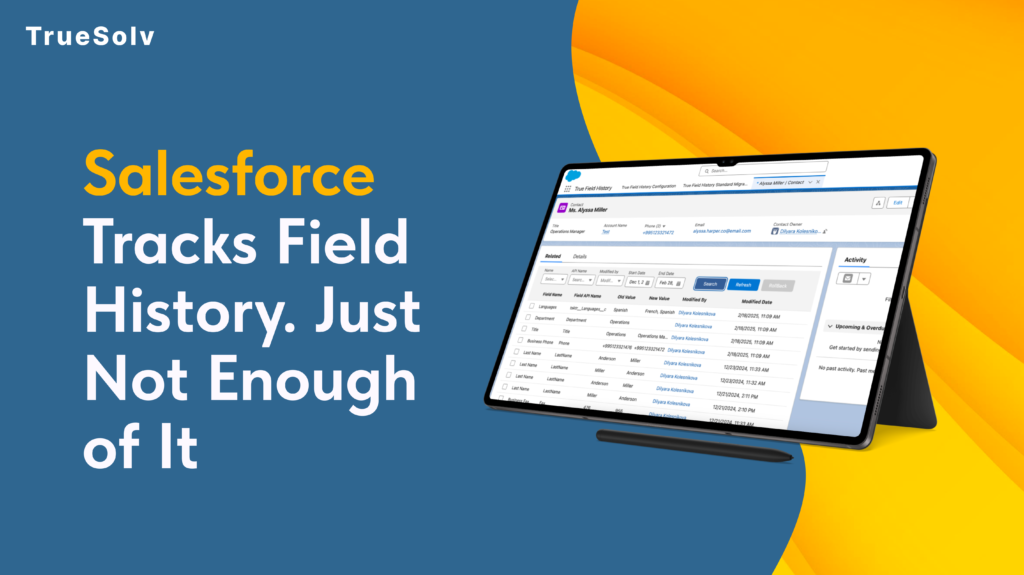
Salesforce tracks field history out of the box. Most admins know this. What they also know is that the native tracking has a ceiling of 20 fields per object, a retention window of 18 months, and a reporting layer that makes it genuinely difficult to answer the question: what changed, when, and who did it? For most orgs running real sales, compliance, or operations workflows, those limits are not theoretical. They are the reason someone eventually asks for something the system cannot produce. What native Field History Tracking actually gives you Salesforce’s built-in Field History Tracking works by logging changes to specified fields on standard and custom objects. When a field value changes, Salesforce records the old value, the new value, the timestamp, and the user who made the change. That information appears in a related list on the record. This is genuinely useful as far as it goes. For a small team with straightforward audit needs and a limited number of objects to monitor, it covers the basics without any configuration beyond selecting the fields to track. The limits become visible when the needs become real. Twenty fields per object is not a large number for an org where a Sales team, an Ops team, and a CS team are all working on the same objects with different fields they care about. Eighteen months is a short window for any compliance use case where a contract or customer relationship spans multiple years. And the related list view, while functional for looking up a single record, is not a reporting surface. ⚠ What happens when a deal value changes and nobody knows why The situation A rep closes a deal at $48,000. Commission is calculated. Three weeks later, the Opportunity Amount in Salesforce reads $38,000. The rep says the value was changed without authorisation. The manager says it was never $48,000. The deal was one of hundreds closed that quarter. Without True Field History The Amount field was not one of the 20 tracked fields — or the change happened during a bulk import that bypasses native logging — or it happened 19 months ago, outside the retention window. No verifiable record exists. The dispute is resolved by whoever has more leverage in the room. With True Field History The full history of the Amount field is available as a Salesforce report: original value, every change since creation, the user who made each change, and the timestamp. The dispute takes five minutes to resolve, and the answer is based on data, not memory. What True Field History does differently True Field History is a native Salesforce app built to remove the ceilings that the built-in tracking imposes. It runs inside your existing Salesforce org, uses the same objects and security model your team already works with, and does not require external infrastructure or a separate data store. The difference is in what gets tracked, how long it is retained, and what you can do with the data once it exists. Capability Native Field History Tracking True Field History Fields tracked per object 20 fields maximum Hard Salesforce platform limit — applies to all standard and custom objects Unlimited Track as many fields as your compliance or operations requirements need Data retention period 18 months Changes older than 18 months are purged automatically by Salesforce Configurable Retain history for as long as your business or regulatory requirements specify Reportability Related list only View history on one record at a time — cannot be included in standard Salesforce reports or dashboards Full Salesforce reporting History data is queryable via Reports and Dashboards — analyse across records, users, and time periods API and system user changes Partial API changes to tracked fields are logged, but still subject to the 20-field cap and retention window Full coverage All changes captured — human edits, integration users, API calls, and system processes Bulk and import changes Not logged Data Loader and bulk API changes are excluded from native field history by default Captured Import and bulk operation changes are logged with user, timestamp, and source Cross-record analysis Not available No way to report on which fields changed most, which users made the most edits, or change patterns across the org Available Build reports on change frequency, user activity, object-level trends, and pre/post-change values at scale Compliance audit readiness Limited Adequate for basic lookups within the 18-month window if the field was tracked — insufficient for formal audits on older data Purpose-built Designed to produce the complete, date-stamped change history that auditors and compliance teams require Installation Native — no install needed Native Salesforce app Installed in your org — no external infrastructure or separate data store No field cap True Field History tracks as many fields as your compliance, operations, or business requirements need — not as many as Salesforce’s 20-field limit allows. For objects with complex workflows where many fields carry business-critical information, this removes the prioritisation problem: you no longer have to decide which 20 fields matter most. Retention that matches your business timeline The 18-month native retention window is shorter than many contract cycles, audit requirements, or customer relationship timelines. True Field History retains the history you need for as long as your business requires it, without the automatic purge that native tracking applies. History that is actually reportable The related list view in native Salesforce is not a reporting surface. It shows you the history of one record at a time, which is fine for lookups but useless for analysis. True Field History stores change data in a structure that Salesforce Reports and Dashboards can query. That means you can answer questions like: which fields changed most frequently last quarter, which users made the most modifications to closed Opportunities, or which accounts had their contract value changed in the 30 days before renewal. System and API changes captured Changes made by integration users, system administrators, or API processes are logged alongside changes made by human users. For orgs with active integrations,
Stripe and Salesforce integration for SaaS companies
Your Stripe dashboard shows who is paying. Your Segment or PostHog shows who is actually using the product. Your Salesforce shows who the sales team is talking to. Three tools, three completely separate truths, and no connection between them. The most dangerous churn is the kind where a customer goes quiet in the product weeks before the renewal and nobody on the sales team knows, because they are looking at a different screen. At 30 to 50 people, this gap stops being an inconvenience and starts costing real revenue. How the Three Systems Connect in Salesforce Segment or PostHog PRODUCT EVENTS Stripe Billing & Subscriptions BILLING DATA Salesforce Account · Opportunity Contract · Lead · Contact SALESFORCE FLOW PQL events usage scores MRR · plan · status Renewal Opportunity auto-created at 90-day window PQL Task for Rep triggered by product threshold CS Churn Alert usage drop triggers CS queue Stripe and Segment/PostHog feed Salesforce. Flow automation handles the rest. How this gap forms at the 30–50 person stage At 10 people, three separate systems are manageable. The founder knows every customer. The CS lead knows the product numbers. The AE knows the renewal dates. Context lives in heads rather than systems, and that works until it does not. At 30 to 50 people, the team is too large for context to live in heads, and too small to have dedicated RevOps infrastructure. Stripe renewals are tracked in a shared spreadsheet that someone updates when they remember. Product usage reports are emailed by the data team on Fridays, if at all. Salesforce has the account records, but none of the product or billing reality is visible on them. The result is a sales team operating on incomplete information, a CS team reacting to churn rather than preventing it, and a leadership team whose pipeline numbers do not reflect what is actually happening in the customer base. Three problems that appear when these systems are not connected The renewal blind spot A subscription renewal is not a surprise event. The date is known. The contract value is known. And yet, in most SaaS companies at this stage, renewals are managed through a combination of calendar reminders, spreadsheet exports from Stripe, and a Salesforce pipeline that someone populated three months ago and has not touched since. The specific failure mode is not the missed renewal itself it is the missed signal. A customer whose usage dropped 60% in the 30 days before renewal is telling you something. Without Stripe and product data flowing into Salesforce, that signal is invisible. The rep goes into the renewal call having seen nothing change in CRM, not knowing the customer has already mentally moved on. Research from SaaS industry benchmarks consistently shows that companies managing renewals manually lose 10 to 15 percent more ARR to avoidable churn than those with connected systems. At a $3 million ARR base, that is between $300,000 and $450,000 a year in revenue that a spreadsheet is costing you. 10–15% more ARR lost The cost of managing renewals manually SaaS companies that track renewals in spreadsheets — without automated CRM visibility into billing and product usage — lose 10 to 15 percent more ARR to avoidable churn than those with connected systems. At a $3M ARR base, that is between $300K and $450K per year that a spreadsheet is costing you. SaaS industry renewal benchmarks The PQL opportunity going uncontacted The most valuable leads in a SaaS company are not the people who filled out a demo form. These are Product-Qualified Leads, and they are worth three to five times the conversion rate of a cold inbound lead. The problem is that the signal for a PQL lives in Segment or PostHog. It does not live in Salesforce. So when a user activates your most advanced features and invites four teammates in the same week, nothing happens in CRM. Meanwhile, the rep’s call list is full of people who clicked an ad or downloaded a whitepaper. The highest-intent users in your product are invisible. The quote and proposal bottleneck At this stage, sales reps are usually creating proposals in one of three ways: a Google Docs template they copy and paste from, a PDF that lives on someone’s desktop, or an email they wrote from scratch. None of these live in Salesforce. None of them can be tracked, approved by a manager, or analyzed for win rates. Furthermore, when a deal closes, nobody can trace back from the Opportunity to the quote that was sent. Pricing decisions, discount patterns, and approval workflows are invisible to leadership. The audit trail does not exist because the quotes were never in the system. What a sales rep’s week looks like without the integration vs. with it What the rep sees Without integration With integration Current MRR / plan ACV from when the deal was first entered. May not reflect a seat reduction or downgrade that happened in Stripe. Live MRR pulled from Stripe, updated on the Account record in real time. Seat count and plan visible at a glance. Product usage trend Not visible. Rep would need to ask the CS lead, who would need to pull a report from PostHog or Segment manually. 30-day engagement score and key feature activation events visible directly on the Account record. Renewal date In the spreadsheet maintained by one person. Or a calendar reminder. Possibly both, possibly disagreeing. Renewal Opportunity auto-created 90 days out, visible in pipeline alongside new business, with value from contract. Churn risk signal None — unless a customer raises a support ticket or emails to cancel. Risk is identified at or after the churn event. Usage drop flag auto-generated when engagement falls below baseline for 14+ days. CS task created before the call. Payment health Unknown. A declined card or failed payment from last month would not appear in CRM. Payment status from Stripe on the Account record. Failed payments surfaced as a risk flag before the renewal call. Expansion opportunity Rep guesses
How to Use GEO in Salesforce Experience Cloud

SEO is not dead, but it has a new layer on top of it. Spring ’26 added Generative Engine Optimization to Salesforce Experience Cloud — a single toggle in Experience Builder that tells AI engines like ChatGPT, Perplexity, and Gemini how to read your portal content directly from the source. If your customers are starting their searches in AI chat instead of Google, this matters more than you might think. Here is what the feature does, how to turn it on, and which types of Salesforce sites benefit most. What Generative Engine Optimization actually does When a user asks ChatGPT or Perplexity a question about your product or service, the AI engine looks for publicly available content to ground its answer. If your Experience Cloud site is not set up to accommodate that process, the engine either ignores it or generates an answer from indirect sources — which may not reflect your current content accurately. GEO changes that by allowing AI bots to request a structured content snapshot of your public site pages. The snapshot gives the AI a clean, source-verified version of your content to work with, rather than a cached or scraped approximation. The result is that your portal becomes citable: when someone asks an AI assistant a question your help center or community site answers, there is a higher chance the answer comes from your actual content. This is the core difference from traditional SEO. Traditional SEO tells Google’s web crawler how to index your page for search ranking. GEO tells AI language model crawlers how to read and reference your page when generating answers. Dimension Traditional SEO GEO Target audience Google, Bing, and other traditional search engine crawlers AI-powered answer engines: ChatGPT, Perplexity, Gemini, Google AI Overviews Goal Rank higher in search results pages Be cited accurately in AI-generated answers Core mechanism Crawlable HTML, meta tags, backlinks, structured data, page speed Structured content snapshots that AI bots can request and process What it optimises for Click-through from a results list Accuracy and attribution when the user never sees a results list Where users see the result A link in a list of search results they click through An answer that cites your content directly in the AI interface Requires publishing Crawled on Google’s schedule, not yours Snapshot reflects your content as of the last site publish How to enable in Salesforce SEO settings: page title, meta description, canonical, sitemap Experience Builder → Settings → SEO → enable GEO toggle → republish Replaces the other? No — parallel tracks for parallel channels. Both are worth managing. Where to find the toggle and how to enable it The GEO setting lives in Experience Builder under the SEO settings panel. The path is: Experience Builder → Settings → SEO → Provide content snapshots of public site pages when requested by AI bots Enable the toggle, then republish the site. The setting takes effect on the next publish. It applies to both Aura and LWR sites and is available in Enterprise, Performance, Unlimited, and Developer editions. There is no additional configuration required at the page level. The toggle works across all public-facing pages on the site. Pages behind authentication are not included — GEO only applies to content that is publicly accessible without a login. How to Enable GEO in Experience Builder Spring ’26 — 3 steps 1 Open your Experience Cloud site in Experience Builder Navigate to the site you want to update. You need Admin access or a profile with Experience Cloud site management permissions. Setup → All Sites → Builder 2 Go to Settings → SEO and enable the GEO toggle In the left panel, open Settings. Select SEO. Find the option labelled “Provide content snapshots of public site pages when requested by AI bots” and enable it. Settings → SEO → AI bots toggle → ON 3 Publish the site The GEO setting takes effect on the next publish. Click Publish in Experience Builder to apply the change. The setting then applies to all public-facing pages on both Aura and LWR sites. Publish → Confirm Available in Enterprise, Performance, Unlimited, and Developer editions. Applies to public pages only — authenticated content is not included. What a content snapshot actually is A content snapshot is a static HTML version of your page that AI crawlers can request and process. It is optimised for machine reading rather than browser rendering — it strips out the dynamic elements, JavaScript-rendered content, and navigation chrome, and returns the core textual content of the page in a clean format. For AI engines, this is more reliable than attempting to crawl a JavaScript-heavy page where the main content only appears after client-side rendering. Furthermore, it means the snapshot reflects what is actually published in your Salesforce CMS, not a cached version from weeks ago. The practical implication is accuracy. If your help center article says your product supports a specific integration, the snapshot contains that exact statement. The AI engine citing your content has a verified source, rather than a reconstructed one. Which Salesforce portals benefit most from enabling GEO Which Salesforce Portals Benefit Most from Enabling GEO Public pages only 📖 Self-service help centers and knowledge bases Articles, FAQs, and troubleshooting guides are exactly the content AI engines look for when answering product questions. GEO makes your help content the cited source instead of a paraphrased approximation. Highest impact 🤝 B2B partner portals with public documentation Product docs, integration guides, and pricing pages are actively searched by B2B buyers using AI research tools. A GEO-enabled portal appears in that research process; one without it does not. High impact 💬 Community sites with publicly visible content Community answers to product questions are high-value for AI engines because they reflect real usage. If your community is publicly viewable without login, GEO makes that content accessible in the right format. Good candidate 🏢 Customer-facing product or service information sites Any Experience Cloud site where prospects or customers look up your features, plans, or support
Connected Apps Are Being Retired in Salesforce
Starting with Spring ’26, Salesforce disabled the creation of new Connected Apps by default across all orgs. Your existing ones still work for now. But the direction is clear: External Client Apps are the future, and the clock is running. This guide covers what changed, why Salesforce made this move, what External Client Apps actually give you, which apps are and are not affected, and a step-by-step migration walkthrough through App Manager. The second half is a structured checklist for the audit before you migrate and the testing after. The TLS certificate changes happening in the same release are covered at the end, because both come from the same security-first motivation. Spring ’26 Migration Timeline & TLS Certificate Phase-Down Connected Apps → External Client Apps 1 Winter ’26 New Connected App creation disabled by default in new orgs Opt-in 2 Spring ’26 New creation disabled across all orgs — Support request required Enforced 3 Summer ’26 Expected enforcement deadline — plan migration before this Deadline 4 Summer ’26 Triple DES for SAML SSO stops working completely Hard Stop TLS Certificate Lifespan Phase-Down (CA-signed certificates only) A Until Mar 14, 2026 Max lifespan 398 days (previous standard) B Mar 15, 2026 Max lifespan drops to 200 days Now C Mar 15, 2027 Max lifespan drops to 100 days Plan for D Mar 15, 2029 Max lifespan drops to 47 days — automation required Automate Why Salesforce is making this change Connected Apps have been part of Salesforce for over a decade. If you have ever set up OAuth for a third-party integration, configured Data Loader, or connected a custom web application to the Salesforce API, you have used one. They are everywhere, and most of them work fine. The problem is not the apps that are configured properly. The problem is the ones that are not, and the architecture that makes unsafe configurations easy to create. By default, Connected Apps allow any API-enabled user in an org to self-authorise a connection to an external application, without admin approval. That is how phishing and vishing attacks that targeted Salesforce orgs worked: trick a user into authorising a malicious Connected App, and the attacker has API access to the org’s data. Salesforce responded by tightening this behaviour, but the structural issue remained. External Client Apps take a different starting position. They adopt a closed security posture by default. Access is not granted unless an administrator explicitly permits it. Furthermore, the architecture separates developer configuration from admin policy, which means a developer building an integration cannot inadvertently override security settings that the admin put in place. What changed in Spring ’26, specifically The rollout has been gradual. In Winter ’26, Salesforce disabled Connected App creation by default in new orgs, with an option for admins to re-enable it manually. Spring ’26 tightened that further: new Connected App creation is now disabled across all orgs, including existing ones. Getting the ability back requires a Salesforce Support request, and Salesforce has been clear that this option will eventually disappear entirely. Two categories of Connected Apps are not affected by this change. Connected Apps created as part of a managed package continue to work and can still be created in that context. Connected Apps used for Slack in the legacy Agentforce Builder are also excluded. Everything else follows the new default. Any new integration from Spring ’26 onward must be built as an External Client App. ⚠ What happens if you try to create a new Connected App without a Support request The New Connected App button no longer appears in App Manager — the option is gone from the UI entirely. Attempting to create one via the Metadata API returns an error. There is no workaround inside the platform. Any new integration built after Spring ’26 that requires its own OAuth client must use an External Client App instead. If a specific business case genuinely requires a new Connected App, you must open a Salesforce Support case and explicitly request the capability. Salesforce may or may not grant it, and this option will be removed in a future release. What External Client Apps offer that Connected Apps do not External Client Apps are not just Connected Apps with a new name. The differences are architectural, and several of them matter a lot depending on how your org is set up. Separation of developer settings and admin policies In a Connected App, the developer configuration and admin security policies live in the same record. A developer with edit access to the Connected App can change the OAuth scopes, the IP restrictions, and the session policies. In an External Client App, those roles are separated. Developers manage the technical settings; admins manage the access policies. Neither can override the other without the appropriate permission. For ISVs and AppExchange partners, this matters enormously. It means the admin installing your package can control how it behaves in their org without touching the underlying app configuration. Second-generation packaging support External Client Apps are designed specifically for second-generation packaging, or 2GP. Connected Apps technically work with 2GP, but the process required manual steps that were fragile and time-consuming. ECAs package cleanly, distribute correctly, and integrate naturally with source control and CI/CD pipelines via the Metadata API. For admins managing integrations rather than building packages, the practical difference is that ECAs behave more predictably in sandboxes and scratch orgs. Scratch Org support for External Client Apps was added in Spring ’26, which makes the developer testing cycle considerably cleaner. Closed security posture by default A new External Client App is not accessible to any user until an administrator explicitly grants access. There is no self-authorisation pathway by default. This is the core security difference from Connected Apps, and it is the reason Salesforce is moving in this direction. What ECAs do not yet support Two important gaps remain. External Client Apps do not support the Username-Password OAuth flow. If any of your existing Connected Apps use this flow, you cannot migrate them