Your reps are not losing quota without Salesforce Time Tracking
Time disappears into meetings, emails, and CRM updates that nobody tracks
How to Enable Setup with Agentforce in Spring ’26
You know that moment when you are three tabs deep in Salesforce documentation, trying to remember where that one setting lives?
Agentforce Sales 2026 Is Live: What Every Director Needs to Know

Saleforce just gave every sales rep a digital coworker that never sleeps, never forgets a follow-up, and never loses a lead.
Customer Success Operations Inside Salesforce
Every CS team has a version of the same problem. The renewal is in six weeks, the CSM has a feeling about it, and that feeling is not in the CRM. When the feeling turns out to be wrong, there is no record of what was missed or why. And next quarter, the same conversation happens with a different account. This playbook covers how to structure customer success operations inside Salesforce so that health, risk, and renewal outcomes become visible, forecastable, and consistently actioned rather than dependent on who happens to be paying attention. Defining customer health without noise Customer health scores fail most often because they try to measure everything. Twelve signals, four data sources, a weighted formula that nobody remembers how to interpret. The score exists but nobody trusts it, so nobody uses it. The signals that most reliably predict churn or expansion across B2B SaaS accounts fall into four categories: Product engagement Are the right users logging in and using the features that deliver value for that customer’s use case. High login volume from a single user is not health. Broad usage across the team and core feature adoption is. Commercial relationship Are invoices paid on time. Are there open support escalations. Has contract scope changed recently. These signals sit in Salesforce already. Stakeholder engagement Has there been meaningful contact with the economic buyer in the last 90 days. Are there open action items from the last business review that have not been addressed. CSM sentiment The CSM’s professional assessment of the relationship, documented as a structured field rather than a note. Green, yellow, or red with a required comment when the rating is yellow or below. Keeping the model to four inputs is a deliberate constraint. It forces the team to decide what actually predicts outcomes for their customer base rather than including everything that could possibly be relevant. Once the model is in use and producing consistent data, additional signals can be added. Starting complex produces a score nobody maintains. The health score should be a field on the Account object, visible on the account page layout alongside the renewal date and the CSM. Any score change should trigger a task for the CSM to review and update the comment field. That comment field is what makes the score useful in leadership reporting, because a red score with context is actionable, while a red score without context just creates a meeting where everyone asks the same questions. Renewal forecasting and risk tracking Renewal forecasting that lives in a spreadsheet is renewal forecasting that nobody outside the CS team can see, verify, or act on. Building it inside Salesforce connects renewal visibility to the same pipeline reporting leadership uses for new business, which changes how seriously it is treated. The standard model uses a Renewal Opportunity object linked to the Account, with a stage field that mirrors the stages the CS team actually works through rather than a copy of the sales pipeline. TrueSolv Tables Renewal stage Typical timing Owner action required Early review 120 to 90 days out CSM reviews health score and flags any risk indicators. Stakeholder confirmed 90 to 60 days out Economic buyer engaged. Renewal scope confirmed. At risk Any point Risk reason documented. Escalation owner assigned. Recovery plan active. Terms agreed 60 to 30 days out Commercial terms confirmed. Contract in progress. Closed won On or before renewal date Contract signed. Health score reset. Expansion noted if applicable. Closed lost Post-renewal date Churn reason documented. Account offboarding initiated. The at-risk stage should be accessible from any other stage in the pipeline, not just sequential. A renewal that was tracking green at 90 days can become at-risk at 45 days because of a support escalation or a change in the customer’s leadership. The CRM model needs to reflect that. Renewal forecast accuracy improves when CSMs are required to document the reason for their confidence rating at each stage rather than just selecting a stage. A renewal at terms agreed with the note that the buyer has not responded to three emails in two weeks is a different risk profile than one where the buyer confirmed on a call last week. That distinction needs to exist in the data, not just in the CSM’s head. Product and support signal integration The health score is only as current as the signals feeding it. For CS operations to work at scale, product engagement and support data need to flow into Salesforce without requiring the CSM to manually update fields after every check-in. Product usage data from platforms like Pendo, Amplitude, or Mixpanel can be pushed to Salesforce through standard API connections. The fields that matter most on the Account record are not raw usage numbers but summarised indicators: whether the account’s active user count is trending up or down, whether core feature adoption has passed the threshold associated with retention in your cohort analysis, and whether there has been any usage in the last 30 days. Those three data points are more actionable than a dashboard full of event counts. Support signal integration follows a similar logic. Open case count by account, average resolution time, and whether there is an active escalation are the fields that change how a CSM approaches a renewal conversation. A Salesforce Flow can calculate these from Service Cloud case records and write them to the Account object without any manual work. Once they are on the account record, they can be included in the health score calculation and surfaced in renewal dashboards. The practical question when designing signal integration is: which data point, if it changed, would cause a CSM to take a different action today. That is the data worth surfacing. Everything else is noise that makes the account record harder to read and the health model harder to maintain. Playbooks and escalation paths A playbook in CS operations is a defined sequence of actions triggered by a specific event. The event might be a health score dropping
Salesforce Release Readiness Playbook
Three times a year, Salesforce updates every org on the planet. Most of the changes are invisible. Some are not. The ones that are not tend to surface in the worst possible way: a sales rep cannot save a quote, a service case stops routing, a validation rule that worked yesterday throws an error today. This playbook gives leaders a lightweight process that reduces that risk without turning every release into a two-week internal project. The goal is a repeatable routine that your team can run in a few focused hours per cycle. What leaders should demand each release Most Salesforce release problems are not caused by the platform update itself. They are caused by nobody reviewing what the update does before it reaches production. Salesforce publishes release notes weeks before each production rollout. Sandboxes upgrade to the preview release before production does. That window exists specifically so teams can test. Most organisations do not use it, and then wonder why the release caused a problem. The minimum standard a leader should hold the team to each release: Release notes reviewed someone with platform knowledge has read the notes and flagged updates relevant to your org’s configuration, active automations, and critical workflows. Enforced updates identified Release Updates that Salesforce is auto-enabling in this cycle are listed and tested in sandbox before the production date. Critical business processes tested the flows, approvals, and integrations that revenue depends on have been validated in the updated sandbox. Rollback plan exists if something breaks in production after the release, the team knows what to do and who to call. That is not an extensive programme. It is four questions. If the answers exist and are documented before every production release, the org is in significantly better shape than most. Release updates and the testing workflow Release Updates are the subset of each Salesforce release that matters most for operational risk. These are platform changes that Salesforce will enforce, either optionally now or mandatorily in a future release. Skipping them does not make them go away. It means you find out what they break when Salesforce turns them on without your input. The testing workflow for each release cycle follows the same sequence regardless of release size. The sandbox preview window is the most valuable and most ignored step in this sequence. Sandboxes on preview instances upgrade before production. That gives teams a real-world environment with their own configuration to test against the new release. Using it is not optional for any organisation where Salesforce underpins revenue-critical processes. For enforced updates specifically, the standard is to test them as early in the preview window as possible, not the week before production. An enforced update that breaks an automation needs time to fix. Testing it late removes that time. Communication plan for users Users who encounter unexpected changes in Salesforce without any warning lose trust in the system faster than any feature can rebuild it. A communication plan for each release does not need to be complex. It needs to exist and it needs to reach the right people before the change lands. The communication model that works for most organisations has three components. Pre-release notice sent one week before production. Covers what is changing, which teams are affected, and where to get help if something looks wrong. Plain language, no technical jargon. Release day confirmation a short message confirming the release has gone live and whether everything is working as expected. If there are known issues, state them and give a resolution timeline. Post-release summary sent within a week. Highlights any new features that users can take advantage of, and closes the loop on any issues that were reported. The teams that most frequently need advance notice are sales, service, and anyone using Salesforce daily for revenue-generating work. IT-only communication is not enough. If a change affects how a sales rep closes a deal or how a service agent resolves a case, those people need to know before it happens, not after. For security updates, the communication should also include a brief explanation of why the change is happening. Users who understand the reason for a change adopt it more readily than users who experience it without context. Change management for security updates Security updates in Salesforce releases deserve specific attention because they carry compliance implications and because the consequences of ignoring them accumulate. An update that Salesforce marks as auto-enforced in a future release will be enforced whether or not the org is ready. The only choice is whether to be ready on your timeline or Salesforce’s. Recent releases have included mandatory enforcement of OmniStudio security flags, changes to session handling in outbound messages, the deprecation of Connected Apps in favour of External Client Apps, and certificate lifespan changes that will eventually reduce rotation windows from 398 days to 47 days. Each of these required an action from technical teams. None of them were optional in the long run. The change management approach for security updates follows this pattern: Identify the enforcement date not the release date. The enforcement date is when the behaviour changes in production regardless of org settings. Assess the impact which integrations, components, or user flows are affected. This requires someone with platform knowledge to test in sandbox before the enforcement date. Assign an owner security updates should have a named person responsible for testing and remediating, not just a team or a backlog item. Communicate to affected system owners integration owners and third-party vendors may need to make changes on their side. They need to know before the enforcement date, not after. Document the change what changed, what was tested, what the outcome was. This matters for audit trails and for explaining the change to regulators or internal compliance teams if asked. Create an owner per release stream Release readiness fails most reliably when nobody owns it. When the admin is responsible for their regular workload and release readiness at the same time, without protected time or a
How To Debug Apex Code Without Losing Your Mind

Apex does not come with a pause button. There is no traditional breakpoint that stops execution and lets you poke around. What Salesforce gives you instead is a set of logging, inspection, and replay tools that, used well, make finding the problem faster than most developers expect. This guide covers the practical workflow from first error to confirmed fix, with examples at each step. Step 1: read the error before you do anything else Most debugging sessions start with someone jumping straight into the code. The error message is still the fastest path to the problem, and it is worth reading carefully before opening any tool. Salesforce Apex errors typically tell you the class name, the line number, and the exception type. A System.NullPointerException at line 42 in AccountTriggerHandler is telling you exactly where to look. A System.LimitException: Too many SOQL queries: 101 is telling you the problem is structural, not a typo. The three most common Apex exceptions and what they signal: NullPointerException A variable you expected to have a value is null. Usually means a query returned no records, or an object field was never set. LimitException A governor limit was hit. SOQL inside a loop is the classic cause of the 101 SOQL queries error. DmlException A database operation failed. Required field missing, validation rule violation, or duplicate record are the usual culprits. Step 2: add System.debug() to trace what is happening System.debug() is the starting point for most Apex debugging. It writes output to the debug log, which you can then read to understand what your code was actually doing at each point. Place debug statements before and after the line you suspect is failing, and log the values of the variables involved. Basic System.debug() usage Account acc = [SELECT Id, Name, OwnerId FROM Account WHERE Id = :accountId LIMIT 1]; System.debug('Account retrieved: ' + acc); System.debug('Owner ID: ' + acc.OwnerId); The LoggingLevel parameter controls how much noise you produce in the log. Use LoggingLevel.DEBUG for general tracing and LoggingLevel.ERROR for conditions that should never occur. Using log levels to filter output System.debug(LoggingLevel.DEBUG, 'Entering processAccount method'); System.debug(LoggingLevel.ERROR, 'Account is null – this should not happen'); System.debug(LoggingLevel.FINEST, 'Loop iteration value: ' + i); Setting the log level to FINEST captures everything. That is useful when you have no idea where the problem is. Once you narrow the location down, reduce it to DEBUG to keep the log readable. Step 3: enable debug logs and read them in Developer Console Debug statements only appear if logging is active for the user running the code. Setting up a trace flag takes two minutes and is required before any logging will appear. Go to Setup search for Debug Logs in the Quick Find box. Click New select the user you want to trace, set an expiry time, and choose a debug level. Start with SFDC_DevConsole if you are not sure which level to use. Reproduce the issue trigger the code by running the action that causes the error. Open Developer Console go to the Logs tab and double-click the most recent log entry. Use the filter type the class or method name you are debugging to isolate relevant lines from the noise. The log output includes a timestamp, event type, and the message from your System.debug() call. What to look for: USER_DEBUG lines contain your System.debug() output SOQL_EXECUTE lines show every query that ran and how many rows it returned DML_BEGIN and DML_END wrap every database operation CUMULATIVE_LIMIT_USAGE near the end of the log shows governor limit consumption Step 4: use Execute Anonymous to isolate and test When you want to test a specific piece of logic without triggering the full context of a trigger or flow, Execute Anonymous is the fastest tool available. It runs Apex directly in the org against real data, and the debug log appears immediately. Open it from Developer Console under Debug, then Open Execute Anonymous Window. Testing a query and inspecting results in isolation Id testAccountId = '0015g00000XXXXXX'; List<Account> accts = [ SELECT Id, Name, AnnualRevenue, OwnerId FROM Account WHERE Id = :testAccountId ]; System.debug('Records found: ' + accts.size()); if (!accts.isEmpty()) { System.debug('Account name: ' + accts[0].Name); System.debug('Annual revenue: ' + accts[0].AnnualRevenue); } This approach lets you confirm whether the data you expect to be there actually is, before assuming the logic is wrong. Many debugging sessions end here because the data was the problem, not the code. Step 5: use Apex Replay Debugger for complex flows For situations where System.debug() alone is not enough, VS Code’s Apex Replay Debugger lets you step through a captured debug log line by line, inspect variable values at each point, and set breakpoints on specific lines without stopping real execution. This is the closest Apex gets to a traditional debugger, and it is free with the Salesforce Extension Pack for VS Code. Open the Apex class or trigger in VS Code click in the gutter to the left of the line numbers to set a breakpoint. Enable the replay debugger open the Command Palette with Ctrl+Shift+P and run SFDX: Turn On Apex Debug Log for Replay Debugger. Reproduce the issue in the org trigger the code that is failing. Fetch the log Command Palette, then SFDX: Get Apex Debug Logs, and select the relevant log. Launch the replay Command Palette, then SFDX: Launch Apex Replay Debugger with Current File. Execution will pause at your breakpoints and you can inspect variable values in the VS Code sidebar. Replay Debugger does not run code again. It replays a captured log, so the variable values you see reflect what actually happened during the original execution. This is exactly what makes it useful for reproducing intermittent bugs. Step 6: identify governor limit issues before they become production problems Governor limits are the category of Apex errors that can reach production undetected in low-volume testing and then fail at scale. The most common is the 101 SOQL queries limit caused by queries inside loops. The pattern that causes 101
How To Choose A Salesforce Partner In 2026

Every Salesforce partner in 2026 has a deck. Slides about transformation. Words like agentic and data-native and AI-first. All of them sound prepared. Very few of them are asking about your business before they start selling you their methodology. Choosing wrong costs more than the invoice. It costs the months of internal time spent managing a partner that was never the right fit, the rework that follows a go-live nobody was proud of, and the political capital burned explaining to leadership why the CRM still does not do what it was supposed to do. The market in 2026 is noisier than it has ever been There are over two thousand registered Salesforce consulting partners globally. A significant portion of them have restructured their positioning in the last eighteen months to lead with AI. Some of them have earned that positioning. Others have added the word Agentforce to their website and called it a capability. The noise is not the problem. The problem is that buyers have less time to filter it than ever, and the signals that used to indicate quality, certification counts, tier badges, years in the ecosystem, are no longer sufficient differentiators on their own. A Summit-tier partner with eight hundred certified professionals can still assign your project to a team that has never solved a problem like yours. The right question is not which partner is most impressive. It is which partner is most likely to deliver the specific outcome your organisation needs, at the pace you need it, without creating a dependency you cannot get out of. Start with business alignment, not technical credentials The first conversation with a prospective partner should not be about their methodology. It should be about your business. What are the actual outcomes you need Salesforce to produce. Not features, not clouds, not integrations. Outcomes. A partner worth working with will ask what success looks like in twelve months and push back if the answer is vague. They will want to understand your sales motion, your service model, your data landscape, and your internal capacity before they suggest a solution architecture. If a partner has already drafted a proposal before understanding any of that, the proposal is not for your business. It is for the last business that looked roughly similar. Business alignment means the partner understands the commercial problem you are trying to solve and can connect every element of the implementation to that problem. It means they will tell you when a feature you asked for does not actually solve the problem, rather than building it because it was in scope. That kind of honesty is less common than it should be and considerably more valuable than a polished slide on transformation. Time-to-value is a strategy question, not a project management question Most Salesforce implementations take longer than planned. Some of that is scope change. Some of it is data quality problems nobody anticipated. Some of it is a partner that builds for elegance when the business needed something working by the end of the quarter. Time-to-value as a selection criterion means asking prospective partners how they sequence delivery. Do they phase the work so users get something useful early, or do they build the complete solution and hand it over at the end of a long engagement. The second model is fine for certain types of projects. For most CRM implementations, where adoption depends on users seeing value before they form opinions about whether the system works, phased delivery with early wins is materially better. Ask specifically for examples where a partner delivered measurable business value within the first sixty to ninety days of a project. What did that look like. What was the business outcome. If they struggle to answer with specifics, the concept of time-to-value may be on their website but not in their delivery approach. What AI and data depth actually means in a partner context Every partner claims AI capability in 2026. The useful distinction is between partners who can configure Agentforce features and partners who can design an AI strategy that is grounded in how your data is structured, how your processes work, and what your users will actually adopt. The first group can get Einstein features switched on. The second group can tell you why those features will produce poor outputs if the underlying data has not been unified, why a particular agent use case will not work in your service model without process redesign, and what the governance model for AI-generated content needs to look like in your industry. A straightforward way to test this is to ask a prospective partner about a situation where they recommended against an AI feature a client wanted to deploy. If the answer involves a conversation about data quality, user trust, or process readiness rather than just technical constraints, that is a partner operating at the right level of depth. If they have never had that conversation, they are likely saying yes to everything and hoping the outcomes follow. On Data Cloud and Zero Copy specifically, the partner should be able to explain the trade-offs between ingestion and federation without prompting. They should have a position on identity resolution at scale and know where it works well versus where it produces frustrating results. Platform enthusiasm is not the same as platform knowledge. Risk reduction as a selection criterion Risk in a Salesforce implementation comes from several predictable directions. Scope that was never clearly defined. A project team that is strong in presales and thin in delivery. Technical debt from a previous implementation that nobody fully disclosed. Data migration that was underestimated. Change management that was treated as a training exercise rather than an organisational commitment. When evaluating a partner, ask directly how they handle each of these. Not in general terms. With specific examples from projects they have delivered. A partner that has never dealt with a troubled legacy org, a difficult data migration, or a client whose internal teams were not aligned going
Zero Copy Data Strategy For Salesforce Leaders
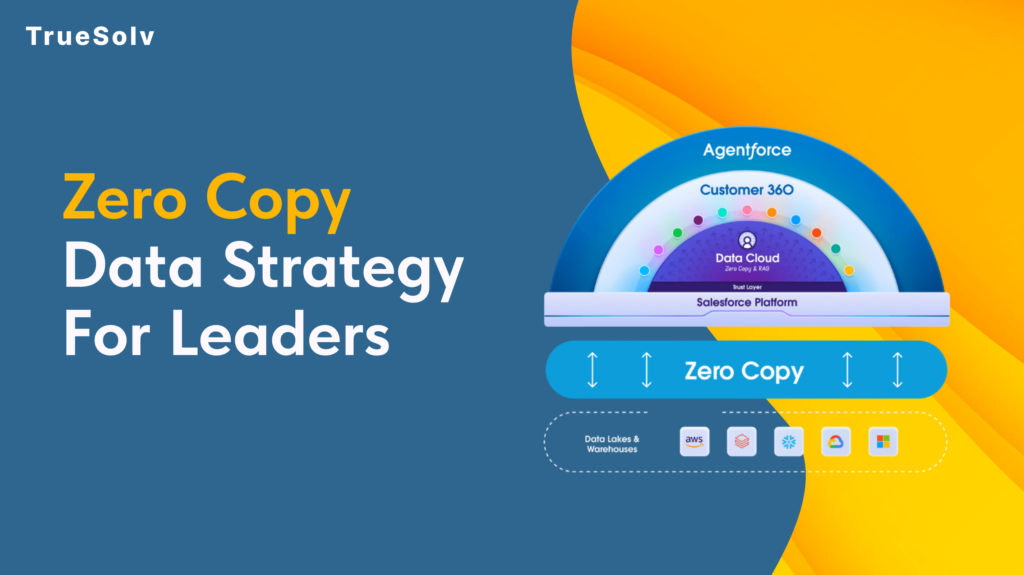
Your data pipeline costs are high because duplication is still the default Moving data feels like progress. Pipelines get built, jobs get scheduled, dashboards get populated. Then the bills arrive and the numbers on those dashboards are still two hours old. Zero Copy is Salesforce’s answer to that pattern. The concept is straightforward: query the data where it lives instead of copying it somewhere else first. The strategic implications for how organisations manage their data estate are considerably less straightforward, and that is what leaders need to understand before committing to a rollout. What Zero Copy changes for cost and speed Traditional data integration between a warehouse like Snowflake or BigQuery and a platform like Salesforce has followed the same basic model for years. Extract data from the source, transform it, load it into the destination, keep the sync job running, fix it when it breaks, reconcile the drift when numbers do not match. Every copy is a maintenance obligation. Zero Copy replaces that model with direct federation. Salesforce Data 360 connects to the external system and sends queries against the data where it already lives. The results come back without a copy of the underlying data ever moving to a new location. When the source data changes, the next query reflects that change immediately. The cost reduction argument operates on two levels. Storage costs drop because duplicate datasets are eliminated. Engineering costs drop because the sync pipelines, the error handling, the reconciliation processes, and the monitoring overhead that comes with them no longer need to exist. For organisations running multiple integration pipelines into Salesforce, that engineering overhead is more significant than the storage bill. On speed, the practical outcome depends heavily on where data physically sits relative to where the query runs. Data 360 uses advanced query pushdown, which delegates computation back to the originating warehouse rather than pulling raw data across and processing it in Salesforce. When the data and the compute are in the same cloud region, this is fast. When they are not, the cross-region transfer introduces the latency that Zero Copy was supposed to eliminate. Use cases that work well Zero Copy performs well in specific scenarios and those scenarios share common characteristics. Operational reporting where freshness matters. If a revenue dashboard, a service queue metric, or an account health score needs to reflect what happened in the last fifteen minutes rather than the last sync cycle, federating from the warehouse eliminates the lag. The data is always current because it is never a copy. Large reference datasets that would be expensive to replicate. Product catalogues, entitlement records, historical transaction data, enrichment datasets from third-party providers. These are large, they change infrequently at the record level, and they are expensive to maintain as copies. Federating them into Data 360 for use in segmentation and identity resolution keeps the warehouse as the source of truth without duplicating the storage cost. AI and agent workloads requiring real-time context. Agentforce and Einstein features fed by stale copied data produce outputs that reflect the past rather than the present. Zero Copy allows AI features to operate against live warehouse data, which meaningfully changes the quality of the output in time-sensitive interactions such as service escalations or dynamic pricing decisions. Bidirectional insight sharing. Zero Copy is not only inbound. Data 360 can share unified customer profiles, segmentation outputs, and AI-generated insights back to the warehouse without replication. Teams that need Salesforce-derived insights in their BI tools or data science environments get those outputs written back to Snowflake or BigQuery without another pipeline layer. Security and access implications Zero Copy changes the security model in ways that require deliberate attention before deployment. With traditional ingestion, access control is applied when data arrives in Salesforce. The ingested dataset can be governed independently of the source. With Zero Copy, access control lives at the source. The permissions set in Snowflake, BigQuery, or the relevant warehouse determine what Salesforce can see. If those permissions are broad, the federation inherits that breadth. The implication for leaders is that permission mapping needs to happen before Zero Copy goes live, not after. Which tables and views is Data 360 authorised to query. Which fields within those tables. Which profiles or roles within Salesforce can access the federated data once it appears in the platform. These questions have answers that sit across two systems, and the governance model needs to account for both. PII handling deserves specific attention. One of the stated benefits of Zero Copy is that personally identifiable information stays in its original governed environment rather than being duplicated into a new location. That is accurate, but it does not reduce the compliance obligation. If GDPR, HIPAA, or any other regulatory framework applies to the data in the warehouse, federating it into Salesforce does not change what those obligations require. Compliance teams should be part of the Zero Copy governance conversation from the beginning. Salesforce provides Private Connect for Data 360, which allows federating from warehouse environments locked within a private cloud network. For organisations with strict network isolation requirements, this is the relevant configuration to understand before assuming Zero Copy requires exposing source systems to the public internet. Implementation checklist and governance Before a Zero Copy rollout, the following decisions should be made explicitly rather than discovered during deployment. Identify the use cases. List the specific reporting, segmentation, or AI scenarios that will use federated data and confirm that Zero Copy fits each one based on the criteria above. Audit the source data. Assess data quality, field naming conventions, and data type handling in the warehouse before connecting it to Data 360. Quality problems in the source appear directly in the federation. Map permissions before connecting. Define exactly which tables, views, and fields Data 360 is authorised to access. Do not default to broad warehouse permissions because the connection is easier to configure that way. Confirm cloud region alignment. Verify that Data 360 infrastructure and the warehouse are in the same cloud region. Cross-region
How Upload Custom Metadata Type from CSV
Salesforce said no to Data Loader for custom metadata. Here is what actually works. The first time most admins try to load custom metadata type records in bulk, they open Data Loader out of habit. Data Loader does not support custom metadata types. It never has. That is not an oversight. Custom metadata lives in the metadata layer, not the data layer, which means the tools built for data records simply do not apply. The good news is that there are three approaches that do work, and choosing the right one depends on who is doing the loading and how many records are involved. Why custom metadata types are different Custom metadata types store configuration, not transactional data. Validation rules, routing logic, feature flags, mapping tables, rate cards, and similar reference data all live there. Because they are part of the metadata layer, they are deployable between environments, version-controllable, and accessible in formula fields and flows without additional SOQL queries. That architecture is what makes them useful. It is also what makes bulk loading feel counterintuitive at first. You are not inserting records into a database table. You are deploying metadata through the Metadata API. Once that distinction is clear, the available approaches make considerably more sense. There are three reliable ways to load custom metadata type records from a CSV file. The Custom Metadata Loader app, the Salesforce CLI, and a Flow-based component. Each has a different profile in terms of setup effort, permissions required, and practical limits. Option one: the Custom Metadata Loader app The Custom Metadata Loader is a Salesforce-built tool available on GitHub. It was the standard approach before CLI commands became generally available, and it remains the most admin-friendly option for teams not using a developer toolchain. Setup requires a one-time deployment to the org, after which admins with the correct permission set can load records directly from the UI without touching a terminal. The tool uses the Metadata API in the background and can process up to 200 records per call. The setup process follows these steps: Download the Custom Metadata Loader from the Salesforce GitHub repository and create a zip file from the contents of the custom_md_loader directory. The package.xml file should sit at the top level of the zip, not inside a subfolder. Log in to Workbench with the target org credentials, navigate to Migration and then Deploy, and upload the zip file. Once deployed, go to Setup and assign the Custom Metadata Loader permission set to anyone who will use the tool. Open the Custom Metadata Loader app from the App Picker and configure Remote Site Settings if prompted. To load records, prepare a CSV file where the header row contains the API names of the custom metadata type fields. The Label or DeveloperName field is required in every file. Either one is sufficient to identify new records or update existing ones. If the org has a namespace, include the namespace prefix in the field API names in the CSV header. Duplicate Label or DeveloperName entries in the file will result in only the last row being processed. Upload the CSV file, select the corresponding custom metadata type from the dropdown, and click Create/Update. The tool will confirm how many records were processed and flag any errors in the output. The 200-record limit per call is worth noting. For larger datasets, the file needs to be split. For very large migrations, the CLI approach removes this constraint entirely. Option two: Salesforce CLI As of Summer 2020, the Salesforce CLI includes dedicated commands for custom metadata types. This is the approach Salesforce now recommends for development workflows, and it has no record limit. The relevant command for inserting records from a CSV file is: sf cmdt generate records –csv CountryMapping.csv –type-name CountryMapping__mdt This command generates the custom metadata record files locally in the project directory. The records then need to be deployed to the org using the standard deploy command: sf project deploy start This command generates the custom metadata record files locally in the project directory. The records then need to be deployed to the org using the standard deploy command: The CSV file format follows the same rules as the Loader approach. The header row must contain field API names, and either Label or DeveloperName is required. The DeveloperName value can only contain alphanumeric characters and underscores, must begin with a letter, and cannot end with an underscore or contain two consecutive underscores. Spaces in name values should be replaced with underscores. The CLI approach fits naturally into a DevOps pipeline. Records can be committed to version control, reviewed before deployment, and promoted through environments using the same workflow as any other metadata change. For teams already running a source-driven development model, this is the more sustainable long-term approach. The steps for a first-time setup follow this sequence: Install the Salesforce CLI and authenticate with the target org using sf org login. Create or open an existing SFDX project in VS Code. Retrieve the custom metadata type definition from the org so the project is aware of its field structure. Prepare the CSV file with the correct field API names in the header row. Run the cmdt generate records command, review the generated files in the CustomMetadata folder, and deploy to org. Option three: a Flow-based screen component For orgs where neither GitHub deployment nor CLI access is practical, a third option exists in the form of a community-built Flow screen component. This approach allows admins to upload a CSV directly from a screen flow in the org, with no external tooling required. The component was created by Salesforce MVP Narender Singh and is available through the UnofficialSF community. It handles the Metadata API calls internally, so the user experience is simply uploading a file and selecting the metadata type. This approach is most appropriate for one-off loads in environments with restricted developer access or where deploying external tools to the org is not straightforward. It is less
Salesforce External Client Apps Integration
Most Salesforce orgs have integrations that nobody fully owns. They were built by a consultant who left, configured by an admin who no longer remembers the details, and authenticated with credentials that nobody rotates. They work, so nobody touches them. But now Salesforce just made it a lot harder to ignore. The integration sprawl nobody talks about When teams evaluate their Salesforce stack, they focus on licences, features, and adoption. Integrations sit in the background doing their job until they do not. Then everyone scrambles to find the person who built it, locate the credentials, and understand what it even does. This is common. A mid-size org running Salesforce for several years typically has dozens of active integrations. ERP connectors, marketing platforms, data enrichment tools, internal APIs, partner feeds. Each one was set up for a reason. Very few of them were set up with a clear owner, a documented auth pattern, or a rotation schedule. Shared credentials mean a breach in one system can pivot into Salesforce. Unused integrations with live tokens are open doors. Integrations running on admin user accounts are a compliance issue waiting to surface. Why Connected Apps became a governance headache Connected Apps have been the standard way to give external systems access to Salesforce for years. They work. But they were built for a simpler era when integration landscapes were smaller and security expectations were lower. The core problem with Connected Apps at scale is visibility. They are globally available by default, meaning any external system can attempt to authenticate against your org once a Connected App exists. Developer settings and admin policies were intertwined, making it difficult to separate who was responsible for what. And because they were easy to create, orgs ended up with a lot of them, many with broader OAuth scopes than the integration actually needed. The result is a long list of Connected Apps in Setup, some active, some dormant, most with unclear ownership, and a few with permissions that made sense in 2019 and look alarming today. What External Client Apps actually fix Salesforce introduced External Client Apps as the next generation of integration framework, and the design decisions reflect real governance priorities rather than just technical modernisation. The most important change is the default posture. Unlike Connected Apps, an External Client App cannot be used to authenticate against an org unless it is explicitly installed or defined there. Shadow connections, where an external tool authenticates without an architect or admin ever deliberately permitting it, are no longer possible with this model. The second significant change is role separation. Connected Apps blurred the line between the developer who built the integration and the admin who managed it. External Client Apps formalise two distinct configuration layers. Developers define what the app is capable of. Admins in each org control when and how it is used. That separation creates clear ownership, which is what governance actually requires. Third, External Client Apps are built for modern authentication patterns. Older flows that embedded credentials directly are no longer supported. The model enforces explicit client identity, modern OAuth flows, and clear boundaries between authentication, authorisation, and policy enforcement. What this means for your integration register The shift to External Client Apps is an opportunity to build something most orgs are missing: a documented integration register. Not a spreadsheet someone made two years ago. An actual record of every system connecting to Salesforce, with the following information attached to each entry: System name and business purpose. Integration owner, both technical and business-side. Authentication type and OAuth flows in use. Scopes granted and whether they are proportionate to the function. Token rotation schedule and last rotation date. Whether credentials are shared with other integrations or systems. Risk classification: what data can this integration read, write, or delete. This is not an extensive project. Most of the information already exists somewhere. The work is centralising it, assigning owners, and making it part of standard operational practice rather than a one-time audit exercise. Building an approval flow for new integrations One pattern that pays off quickly is a lightweight approval process for new integrations before they go live. Not a bureaucratic gate, but a structured conversation that covers the basics. What does this integration need to access in Salesforce and why. Which authentication flow will it use. Who owns it on both the vendor side and the internal side. What is the plan when credentials need to rotate or the vendor relationship ends. External Client Apps support this pattern well because the separation between developer configuration and admin policy means there is a natural checkpoint. The integration has to be explicitly admitted into the org. That moment is the right time to answer these questions rather than after the fact. Token rotation and monitoring as standard practice Credential rotation is one of those practices most teams agree with in principle and very few apply consistently. With integrations, the problem is that rotation requires coordination between Salesforce, the external system, and whoever manages that vendor relationship. It is easy to defer. External Client Apps support automated credential rotation through the Metadata API, which removes much of the manual friction. For teams running DevOps pipelines, this means rotation can become part of standard operations rather than a quarterly reminder that gets ignored. On the monitoring side, Setup Audit Trail logs policy and setting updates for External Client Apps. Pairing that with event monitoring on API access gives you a clearer picture of what each integration is actually doing versus what it is permitted to do. Anomalies become visible. Dormant integrations surface. Over-permissioned apps become easier to identify and fix. Migration considerations for existing Connected Apps Salesforce has provided a migration path from Connected Apps to External Client Apps, and the trajectory of the platform makes it clear that External Client Apps are the long-term model. That does not mean everything needs to migrate immediately. Working integrations that are not causing governance problems do not need to be touched