Summer ’26 Flow Updates: Six Things That Will Actually Change How You Build Automations

Every Salesforce release, the Flow section of the release notes is the one worth reading first. Summer ’26 did not disappoint — new date operators, batch size control for scheduled flows, collapsible fault paths, natural language updates for Screen Flows via Agentforce, and a genuinely better radio button experience. Here is the full breakdown of what landed, what it does, and when you would actually use it. Feature What it does Who benefits most 📅 Date Field Operators New operators: Is Today, Is Tomorrow, Is On, Anniversary. Applies to Date fields only — not DateTime. Admins building renewal reminders, SLA tracking, birthday campaigns, or any time-sensitive record logic. Eliminates the need for formula field workarounds. ⚙️ Scheduled Flow Batch Size Custom batch size control instead of the fixed default of 200. Smaller batches = lower governor limit risk. Larger batches = faster processing. Any org running Scheduled Flows against unpredictable record volumes. High-value for flows with DML operations or external callouts. 🗂️ Collapsible Fault Paths Fault paths in Flow Builder can now be collapsed. Canvas continues the visual cleanup started in Spring ’26 with collapsible Decisions and Loops. Admins managing complex flows with shared error-handling subflows. Large production flows become significantly more readable. 🤖 Natural Language Screen Flow Updates Agentforce natural language editing now supports Screen Flows. Describe a change in plain language, Agentforce makes the adjustment. Early access — review required. Admins who want to trial Agentforce-assisted flow building. Works well for additive changes with clear descriptions. Complex logic still needs manual work. 🔘 Radio Button Group New compact visual component replacing standard radio buttons in Screen Flows. Horizontal and vertical layout options, less vertical space per option. Any admin who has built Screen Flow intake forms and found standard radio buttons too space-heavy. Direct UI improvement for end users. 📧 Email Template Deployment Fix Send Email Actions using Email Templates now deploy correctly between environments. Fix is in “Show advanced options” in the action properties. Orgs with proper sandbox-to-production workflows who have been maintaining environment-specific flow versions as a workaround. One-time fix. 1. New date field operators Flow now supports four new date operators: Is Today, Is Tomorrow, Is On, and anniversary-based matching for date fields. For any flow that does time-sensitive record logic, this is a meaningful improvement over the workarounds that previously required formula fields or date math. The practical applications are immediate. A renewal reminder flow that should trigger 30 days before the contract end date can now use Is On with a relative date formula rather than a calculated checkbox field. A birthday-triggered campaign can fire using the anniversary operator without building a custom evaluation layer. Any flow checking whether a date falls within a specific window benefits directly. One important constraint: these operators apply to Date data types only, not DateTime. If your date field includes a time component, the new operators will not be available. This is worth checking against your object schema before building. Summer ’26 — New Flow Date Operators Quick Reference Is Today Matches records where the date field equals the current date. Ideal for daily-run flows that flag due-today tasks, contracts expiring today, or time-sensitive SLA conditions. Is Tomorrow Matches records where the date field equals tomorrow’s date. Use for advance notification flows — renewal reminders, follow-up triggers, appointment confirmations the day before. Is On Matches records where the date field equals a specified date or relative date formula. Most flexible of the new operators — covers “is on the first of next month” and similar calculated dates. Anniversary Matches records where the month and day of the date field match the current month and day, regardless of year. Use for birthday campaigns, contract anniversary workflows, and renewal sequences tied to the same calendar date each year. ⚠ Important: these operators apply to Date fields only — not DateTime. Check your field type before building. 2. Batch size control for Scheduled Flows Scheduled Flows now support a custom batch size setting. The default has always been 200 records per batch, which is a sensible baseline for most use cases but creates problems when qualifying record counts are unpredictable and the flow logic includes DML operations, callouts, or other governor limit-sensitive steps. Smaller batch sizes reduce the risk of hitting limits when record volume spikes. A flow that runs cleanly on 200 records can fail when it processes 1,400 and the batch triggers 200 SOQL queries rather than 200. Reducing the batch to 50 adds processing time but removes the failure risk. The tradeoff runs in both directions. Larger batches complete the full scheduled run faster when record volume is stable and governor limits are not a concern. The new control lets admins tune this explicitly rather than accepting a single default for every scenario. 3. Collapsible Fault Paths Fault paths can now be collapsed in Flow Builder, following the Spring ’26 changes that added collapsible Decisions and Loops. This is a quality-of-life improvement rather than a capability change — fault paths do not behave differently when collapsed — but for anyone managing complex flows with shared error-handling subflows, the canvas clarity improvement is real. Large production flows become difficult to read when fault paths branch from every element that can fail and the canvas becomes a sprawl of error-handling logic. Collapsing fault paths lets admins focus on the main execution path during review and debugging, and expand fault handling when needed. 4. Update Screen Flows with natural language via Agentforce Agentforce-powered natural language editing, which launched for Record-Triggered and Scheduled Flows in Spring ’26, now extends to Screen Flows in Summer ’26. Admins can describe the change they want in plain language — ‘add a required email field before the address step’ — and Agentforce makes the adjustment in Flow Builder. This feature is in early access and the honest framing is the right one: it works well for additive changes that are clearly described. Reorganising a complex screen, adjusting conditional visibility rules, or changes that require
AgentExchange Salesforce: AppExchange Renamed
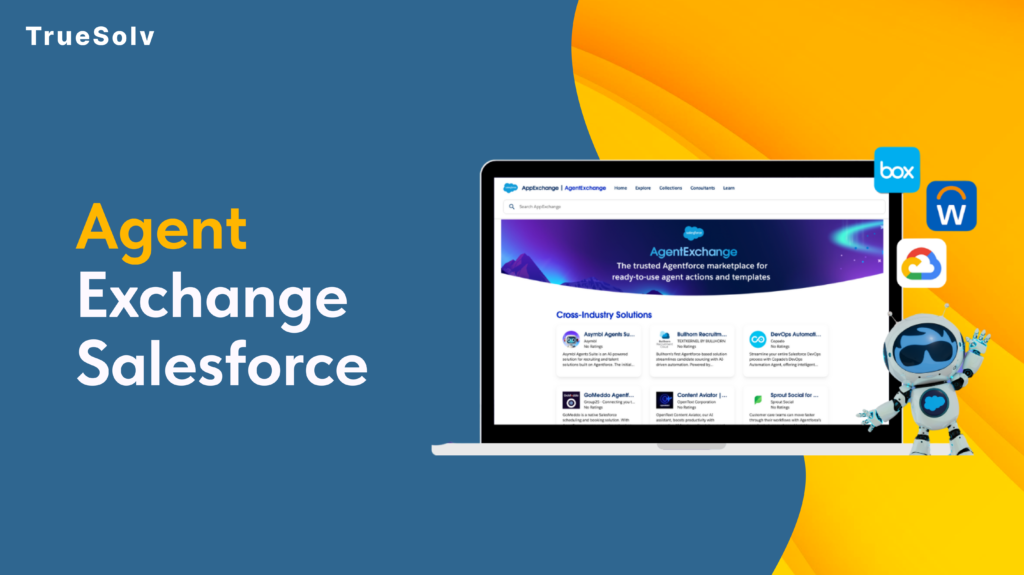
Salesforce has renamed things before. A lot. Data Cloud has had five names. Agentforce 360 had four. But AgentExchange, Salesforce’s most consequential rename yet is different. The AppExchange, launched in 2006, the marketplace that nearly 90 percent of Salesforce customers used to extend the platform, just became AgentExchange. Launched with a $50M Builders Fund and 13,000 apps, agents, and MCP servers under one roof. The community has thoughts. AppExchange to AgentExchange — Twenty Years 06 2006 AppExchange launches — first enterprise app marketplace Launch 12 2012 1,000 apps milestone 18 2018 AppExchange integrates Slack apps after acquisition 24 2024 Agentforce launches — first AI agent listings appear 26 2026 AgentExchange — unified catalog, AI search, $50M fund Now What actually changed The rename is not purely cosmetic. Three previously separate catalogs, the AppExchange, the Slack Marketplace, and the Agentforce ecosystem, are now unified into a single AI-searchable marketplace. That means 10,000 Salesforce apps, 2,600 Slack apps, and over 1,000 agents and MCP servers from partners including Google, DocuSign, and Notion now live in one place. Discovery works differently. Instead of keyword browsing through categories, users describe what they need and AgentExchange surfaces the right solution. One-click activation replaces the previous multi-step install process. For admins who have spent time navigating package installation wizards, that reduction in friction is material. The $50M Builders Fund is the other concrete change. It provides investment, engineering support, and go-to-market backing for ISVs and partners building in the new ecosystem, not a fund you apply to generically, but structured support tied to building agents and MCP integrations for AgentExchange distribution. The case for why it is more than a rebrand The community frustration with Salesforce naming is understandable and largely justified. When a product gets four names in three years, each rename starts looking like a marketing exercise rather than a product decision. This one is different for a specific reason: the marketplace structure changed, not just the name. AppExchange was an app catalog optimised for keyword search and category browsing. AgentExchange is designed from the ground up for AI-guided discovery. Those are different products with different underlying assumptions about how users find and evaluate solutions. Moreover, the consolidation of Salesforce apps, Slack apps, and AI agents into a single catalog reflects a genuine product reality: the Salesforce platform in 2026 includes all three, and separating them into different marketplaces created friction for customers who needed solutions that span all three surfaces. Putting them in one place with AI-guided discovery is a coherent response to how the platform actually works now. Partner data from the announcement makes the economic case more concrete. DocuSign processed over 200 private offers in Q4 2025 with 60 percent faster time to signature after listing on the unified marketplace. Notion cut its average sales cycle from four months to three weeks. These are not typical launch testimonials — they are specific metrics tied to the marketplace distribution model. What the community is actually saying The Reddit r/Salesforce thread opened with ‘Why?’ and the SF Ben community spent a productive afternoon debating whether CTO Nicolas Vuilamy was right that the company would eventually just rename itself Agentforce. One Salesforce coach wrote: ‘It is all a clear sign that the future is not human for Salesforce.’ The tone ranged from resigned to genuinely unsettled. The underlying concern is reasonable. When every product gets an ‘Agentforce’ prefix and every marketplace becomes an ‘Exchange’, it starts to feel like the platform is being rebuilt around a bet on AI that has not yet fully proven itself in the field. That is a fair read. The counter is also fair: the bets Salesforce made on CRM in 2006 and on the cloud in 2010 looked aggressive at the time and turned out to be correct. The question is whether the AI agent bet is in the same category. What this means by role 13,000+ Solutions total Salesforce apps, Slack apps, agents, and MCP servers unified in AgentExchange at launch $50M Builders Fund Investment, engineering support, and go-to-market backing for ISVs building agents and MCP servers 300% YoY growth Growth in Slack AI agent listings since January 2026 — the fastest-growing category in the marketplace Role What actually changed for you What to do now Admin Unified catalog means one place to find solutions across Salesforce, Slack, and Agentforce. AI-guided discovery replaces keyword browsing. One-click activation replaces multi-step install wizards. Explore Browse AgentExchange for solutions you previously searched AppExchange for — new categories and unified search may surface options you did not know existed. Developer 1,000+ agents and MCP servers are now listed alongside traditional apps. These are structured integration tools AI coding agents can call directly — a new category of extension beyond installed packages. Evaluate Review available MCP servers relevant to your integration stack. The agent/MCP category will expand rapidly; early familiarity pays off. ISV / Partner The $50M Builders Fund and AI-guided distribution represent a genuine go-to-market shift. Marketplace discoverability now depends on AI-optimised listing quality, not just keyword-based search ranking. Act now Review AgentExchange listing criteria. Evaluate what an agent or MCP server submission would require for your product. The window to list early in an AI-native marketplace is open now. Decision Maker The rename signals Salesforce’s long-term direction: agents as the primary unit of value. The practical marketplace capabilities are similar to AppExchange for current purchasing decisions. The strategic signal is clear. Watch Track which vendor partners are building agents and MCP integrations. The ecosystem is reshaping around agent-based extensions — understanding the map now informs technology roadmap decisions later. Building on Salesforce and thinking about what AgentExchange means for your product or integration strategy? Reach out at truesolv.com — we work with the Salesforce ecosystem daily. Follow us on LinkedIn for more Salesforce news with less jargon.
Salesforce Summer 26 Developer Features

Every Salesforce Summer ’26 release has one developer feature that teams have been waiting for since approximately forever. LWC Component Preview is finally generally available. State Management for LWC reaches full GA. And the new Release Manager beta introduces a three-channel preview system that changes how teams stay ahead of what is coming. Here is the full rundown. LWC Component Preview finally GA This is the one. Anyone who has spent 90 seconds watching a Salesforce page reload to verify a two-line CSS change understands what this feature means for development speed. LWC Component Preview lets you see a single Lightning Web Component render in the browser or in VS Code without triggering a full page refresh. The feature has been in preview for several releases. Reaching GA in Summer ’26 means it is now stable, supported, and deployable in production orgs. The practical impact on iterative component development — particularly for orgs building complex page architectures with multiple custom components — is immediate and significant. State Management GA in Summer ’26 State Management for LWC is now fully generally available. The feature adds centralised state management across component trees — solving a problem that every developer building complex page architectures with multiple LWC components has run into: coordinating shared state without lifting it through the entire component tree via props. Salesforce Release Manager Beta — Three Channels 🏭 Standard Stable production The familiar quarterly release. Fully tested, fully supported, available in all sandboxes and production orgs. Best for Production orgs. Teams that need predictability above all else. The default for every Salesforce org. ⚡ Accelerated Production-ready early Features that are complete and tested but not yet in a major quarterly release. Earlier access, same quality bar as Standard. Best for Teams that want new capabilities before the next quarterly drop. Sandbox testing of features that are not yet in Standard. 🔬 Dev Active development Features in active development. Not production-ready. For evaluation, feedback, and planning — not for customer-facing work. Best for Developers who want to evaluate upcoming platform direction. Architects planning ahead. Never for production use. The practical benefit is cleaner data flow, less imperative code for managing shared state, and more predictable component behaviour when multiple components on a page need to respond to the same underlying data. For orgs building Opportunity detail pages with line items, totals, and discount components that all need to update from the same source, this removes a significant amount of coordination boilerplate. Salesforce Release Manager beta The Release Manager is the most strategically significant developer feature in Summer ’26. It gives developers access to three distinct release channels: Before: prop-drilling across components Without State Management // ParentComponent.js // Must pass totalMrr down to // every child that needs it export default class ParentCmp { @track totalMrr = 0; @track discount = 0; @track finalPrice = 0; } // Must wire props manually // to LineItems, Totals, Discounts // components separately After: centralised state store With State Management // oppStore.js — shared state import { createStore } from ‘@salesforce/state’; export const oppStore = createStore({ totalMrr: 0, discount: 0, finalPrice: 0 }); // Any component subscribes directly // No prop drilling needed Both LineItems, Totals, and Discounts components subscribe to oppStore directly — no parent coordination needed Standard: the stable production release. Familiar, predictable, the channel your production org is already on. Accelerated: production-ready features that are complete but not yet in a major release. These are features Salesforce has shipped and tested but held back from the standard release cycle. For teams that want to adopt new capabilities ahead of the next quarterly release, this is the channel. Dev: new features in active development. Not production-ready, not suitable for anything close to customer-facing work, but the right channel for teams that want to evaluate and influence upcoming platform direction. The Release Manager represents a meaningful shift toward continuous delivery for Salesforce. Historically, the three-times-a-year release cycle has meant long waits between features shipping at Salesforce and becoming available to developers. The Accelerated channel closes that gap considerably. Custom Flow Screen Component Styling Hooks Developers building custom Screen Flow components in LWC can now expose CSS styling hooks — color, border radius, font weight, and other SLDS attributes — so admins can customise the visual appearance of shared components without touching the component code. The practical scenario: an org has multiple business units sharing a common intake form component. The component logic is identical but each business unit needs different branding. Previously, the developer either maintained multiple versions of the component or the admin had no control over the visual output. Styling hooks solve this cleanly — one component, admin-configurable appearance per context. React support via Multi Framework (Beta) Salesforce Multi Framework enters beta in Summer ’26, allowing developers to build with ReactJS hosted natively on Salesforce, with data accessed via GraphQL and full integration with Agentforce Vibes. This is the most significant frontend architecture announcement in the release, and it deserves an honest take. The LWC-only frontend story is over. Salesforce is acknowledging that the developer ecosystem it wants to attract builds in React, and that requiring teams to learn a Salesforce-specific component model is a friction point that affects adoption of the platform for new development. The complication is a third UI model alongside LWC and the Agentforce Experience Layer. Orgs making frontend architecture decisions now face a genuinely more complex set of options. The article’s recommendation: Multi Framework is Beta and the right time to evaluate it is in preview orgs, not production. 5 Things Developers Should Test in Their Summer ’26 Preview Sandbox Before May 9 1 LWC Component Preview with your most complex component Open a custom LWC component in VS Code, make a CSS change, and preview it without a full page reload. Test with a component that has nested child components to confirm the preview reflects the full hierarchy correctly. GA — test for your stack 2 State Management on a page with multiple components
Salesforce Headless 360 and MCP
For most of Salesforce’s history, building on the platform meant working inside it: browser open, Setup menu navigated, page layouts configured. Salesforce Headless 360, announced at TDX on April 15, draws a line under that era. Every piece of the platform (data, workflows, business logic, compliance controls) is now reachable as an API, an MCP tool, or a CLI command. No browser required. Here is what that actually means if you build integrations or work with AI coding tools. Salesforce Headless 360 — How the Platform Is Now Exposed Salesforce Platform Data · Flows · Logic · Permissions Headless 360 REST / Bulk / Streaming Standard Salesforce APIs 60+ MCP Tools AI-callable structured tools CLI / DevOps Center Programmatic CI/CD access Human Developers CLI · VS Code · CI/CD pipelines AI Coding Agents Claude Code · Cursor · Codex Integration Systems MCP servers · External APIs No browser required. Every capability reachable as API, MCP tool, or CLI command. What Salesforce Headless 360 Ships With The headline number is 60 new MCP tools exposing Salesforce capabilities as structured interfaces that AI agents can call directly: objects, flows, deployments, permissions, reports. Alongside those, 30 preconfigured coding skills cover the most common Salesforce development tasks, from writing Apex triggers to configuring permission sets. DevOps Center MCP and Natural Language DevOps The DevOps Center MCP is the most immediately practical piece for integration teams: it brings programmatic access into any CI/CD pipeline. Natural Language DevOps sits on top of that: describe what you want to deploy in plain language and agents execute it. Salesforce cites a 40 percent cycle time reduction for development workflows as an early benchmark from teams using the integrated toolchain. The framing from Salesforce is that the build loop requiring context-switching across four different tools now happens inside one connected experience. That is the right framing, but the practical reality depends heavily on where your org’s metadata and documentation quality sits right now. What MCP means for Salesforce integrations The Model Context Protocol is becoming the default interoperability layer for AI agents across the industry. By exposing Salesforce through MCP, Salesforce is positioning itself as a participant in multi-agent orchestration, not just a destination for data, but a system that AI agents from Claude Code, Cursor, Codex, and Windsurf can work within directly. The practical shift for integration teams is significant. Instead of writing API wrappers manually (defining the request shape, handling authentication, mapping the response), you describe the integration behaviour and an agent executes and tests it using the MCP tools that already understand Salesforce’s object model. A Practical Integration Example For example: an integration that syncs Salesforce Opportunity data to an external billing system previously required a developer to write and maintain the API connection, handle field mapping, and manage error states. With MCP-exposed Salesforce tools and an AI coding agent, the same integration can be described in plain language, generated, and validated against the actual org schema, including custom objects and fields, without manual API documentation reading. The constraint is the quality of the description. Vague integration requirements produce vague integrations. MCP tools remove the API plumbing problem; they do not remove the requirement to know what you are building. Agent Fabric and multi-agent governance Headless 360 opens the Salesforce platform to AI agents. Agent Fabric answers the follow-on question: when you have multiple agents from multiple vendors operating across Salesforce and other systems, who governs them? Agent Fabric is the control plane launched at TDX 2026. It provides deterministic orchestration and centralised governance across agents, tools, and LLMs, scanning for agents across Salesforce Agentforce, Amazon Bedrock, Microsoft Foundry, and MCP servers, then providing a unified view of what agents exist, what they have access to, and what they are doing. Why Deterministic Governance Matters The governance problem it solves is specific: AI agents are probabilistic. They reason toward outcomes, which means their behaviour cannot be fully predicted from the instruction set alone. Agent Fabric adds the deterministic layer: Agent Broker defines fixed handoff rules between agents, Agent Script enforces compliance checkpoints within workflows, and Trusted Agent Identity ensures agents execute with specific user permissions rather than a shared service account. For architects designing systems where agents span Salesforce and external platforms, Agent Fabric is the piece that makes enterprise-grade deployment possible rather than merely experimental. Workflow Traditional Salesforce dev Headless 360 + AI coding agents Write an Apex trigger Open Developer Console or VS Code → write Apex → deploy to sandbox → test manually → deploy to production Describe the trigger behaviour in natural language → agent writes Apex using your org’s actual object model → review → deploy via DevOps Center MCP Build a Salesforce integration Read API docs → write request/response handlers → map fields manually → handle auth and error states → test in sandbox Describe integration behaviour → agent generates using MCP tools that understand your schema → automated testing → review and approve Understand an existing automation Open Flow Builder or Apex class → read through the logic → trace dependencies manually → ask a colleague Ask Vibes (Ask mode): “Explain this trigger and whether it conflicts with the Process Builder on this object” — org-aware answer with dependency context Debug a production issue Reproduce locally → inspect error log → trace through code → write fix → test → deploy Debug mode: agent analyses error log, identifies root cause in org context, proposes targeted fix → developer reviews and applies Deploy a change across environments Package the change → run change set or Salesforce CLI deploy → validate in staging → release Natural Language DevOps: describe the deployment in plain language → agent executes via DevOps Center MCP with CI/CD pipeline integration Context-switching across tools VS Code → Org → Developer Console → Sandbox → Jira → Slack → back to Org. Multiple context switches per task. One connected experience inside the development environment. Salesforce cites 40% reduction in development cycle time. What you need before Headless
Salesforce Summer 26 Admin Checklist
Most orgs get surprised by Salesforce releases. Not because the dates are hidden — they are published months in advance — but because the checklist for actually preparing keeps getting skipped until something breaks in production. Summer ’26 sandboxes start upgrading around May 9. Here is a practical six-step admin prep list so that date does not catch you off guard. Summer ’26 — Main Upgrade Weekends ~May 9 Sandbox preview orgs upgradeVaries by instance — check trust.salesforce.com for your exact date ~June 5 First non-preview sandbox weekendMost non-preview sandboxes on NA and EU instances ~June 12 Second non-preview sandbox weekend + Production beginsProduction orgs start upgrading — varies by instance The six steps worth completing before May 9 Step 1: Find your instance and exact upgrade date Not all Salesforce instances upgrade on the same weekend. Your specific upgrade date depends on the instance your org runs on, and there are three main release weekends across May and June. Find your instance in Setup under Company Information, then check the Salesforce Trust maintenance calendar for the exact date. This matters because ‘around May 9’ could mean May 9 or it could mean June 12 depending on your instance. Knowing your actual date changes how urgently the rest of this checklist needs to happen. Salesforce Trust maintenance calendar Step 2: Review the Summer ’26 release notes for your specific stack The full release notes are long. The useful shortcut is to search for ‘enforcement’ in the notes, because enforcement items are the changes that will be applied automatically — including to orgs that have not opted in to anything. Two items affect most orgs: the accessibility enforcement for components at 200 percent zoom, and the X (Twitter) Auth Provider callback URL change that requires manual reconfiguration. Both are breaking changes for the orgs they affect. Neither fixes itself after the upgrade. Salesforce Summer ’26 release notes Step 3: Audit your Connected Apps and External Client Apps status Summer ’26 tightens the External Client Apps enforcement that began in Spring ’26. If your org has Connected Apps your team created — not vendor-installed managed package apps, but apps your own admins or developers built — check whether they have been migrated. Apps that have not been migrated will face increasing enforcement pressure in Summer ’26. Connected Apps migration guide Step 4: Decide between preview and non-preview sandbox Preview sandboxes opt in to the Summer ’26 upgrade early, giving you more time to test before the production release. Non-preview sandboxes stay on the Spring ’26 release longer, giving you more time with a stable environment. Neither choice is universally correct — it depends on how many customisations you have to test and how much development work is currently in flight. The Salesforce Sandbox Preview Guide explains how to make the switch if you want to opt your sandbox into preview before the window closes. Summer ’26 Admin Prep — 6 Steps Before May 9 Complete before upgrade 1 Find your instance and exact upgrade date Setup → Company Information → note your instance (e.g. NA87). Check trust.salesforce.com/status/maintenance for your exact date. “Around May 9” could mean May 9 or June 12 depending on your instance. 5 minutes 2 Search “enforcement” in the Summer ’26 release notes Enforcement items are auto-applied — you do not opt in. The two that affect most orgs: accessibility enforcement for components at 200% zoom, and the X (Twitter) Auth Provider callback URL change that requires manual reconfiguration. Breaking changes 3 Audit your Connected Apps and ECA migration status App Manager → filter by Connected App → identify apps your org created (not vendor managed packages). If any have not been migrated to External Client Apps, Summer ’26 tightens enforcement further. Act now if pending 4 Decide: preview sandbox or non-preview? Preview gives you more testing time before production upgrades. Non-preview gives you a longer stable window during active development. The Salesforce Sandbox Preview Guide covers how to opt in. Window closes before May 9. Decision needed 5 Review Scheduled Flows that process large record volumes Summer ’26 introduces custom batch size control for Scheduled Flows. The default of 200 is now configurable. Flag any flow where governor limit errors are a known risk — set appropriate batch sizes before the first run on the new release. New control available 6 Bookmark the Release Manager beta opt-in New in Summer ’26: three release channels — Standard (stable), Accelerated (production-ready, not yet in major release), Dev (in active development). Opt in now for earlier visibility into what comes after Summer ’26. New capability Step 5: Review Scheduled Flows that process large record volumes Summer ’26 introduces custom batch size controls for Scheduled Flows. The default batch size of 200 records is now configurable. Any flow processing large record volumes where governor limit errors are a known risk should be reviewed before the upgrade lands, so you can set appropriate batch sizes from the first run on the new release rather than after the first failure. Step 6: Bookmark the Release Manager beta opt-in New in Summer ’26, the Salesforce Release Manager gives admins and developers access to three feature channels: Standard for stable production behaviour, Accelerated for production-ready features not yet in a major release, and Dev for features in active development. This is a significant shift toward continuous delivery. Opting in now gives your team earlier visibility into what is coming after Summer ’26, rather than discovering it in the next release notes drop. Six steps, one week. Admins who work through this before May 9 spend the upgrade weekend watching things work. Everyone else spends it finding out what broke. Already testing Summer ’26 features in your sandbox? If your org needs a second pair of eyes before the upgrade, our team at truesolv.com does exactly that. Follow us on LinkedIn for release-critical updates every week.
Salesforce Summer 26 Release

Summer ’26 sandboxes start upgrading around May 9. Release notes dropped April 22. If you have not looked at them yet, the window before your sandbox looks different and your customisations start behaving unexpectedly is narrow. This is the short version of what is actually changing — not the full list of every feature, but the things admins and developers should know about before the upgrade arrives. Consideration Preview Sandbox Non-Preview Sandbox When it upgrades Early — around May 9 Upgrades ahead of production release Later — June 5 or June 12 Stays on Spring ’26 longer Testing window for Summer ’26 Longer — you have weeks to validate customisations before production upgrades Shorter — less time between sandbox and production upgrade Stability during active development Lower — your sandbox is on new code while dev work is still in progress Higher — dev work continues on stable Spring ’26 release Best for orgs with Many customisations to validate, time-sensitive compliance testing, proactive release teams Active development sprints, tight deadlines, small teams without dedicated release bandwidth How to opt in Follow the Salesforce Sandbox Preview Guide — window closes before May 9 No action required — non-preview is the default What is in Summer ’26 that admins need to know Agentforce woven into CRM surfaces Summer ’26 moves Agentforce from a standalone layer to something embedded in daily Sales Cloud and Service Cloud workflows. AI summaries, deal coaching suggestions, and automated research appear directly in the views reps already use. For admins, this means any customisations built against these surfaces — record detail layouts, list views, service console components — may need testing against the new Agentforce-aware UI before the upgrade lands. Flow UI improvements: collapsible fault paths and readable data tables Large production flows are hard to maintain when the canvas is an unnavigable tangle of fault paths and unformatted data. Summer ’26 adds collapsible fault paths and a significantly improved data table display inside Flow Builder. These are cosmetic in that they do not change flow behaviour, but the maintenance benefit is real for any org with complex automations. Additionally, Summer ’26 extends Agentforce-powered natural language editing to Screen Flows, having added it to Record-Triggered and Scheduled Flows in Spring ’26. This remains an early-access feature and requires review before applying suggestions to production flows. Accessibility enforcement at 200 percent zoom Salesforce is enforcing accessibility standards for UI components at 200 percent browser zoom in Summer ’26. For orgs with custom Lightning components, custom page layouts, or Visualforce pages, this may produce unexpected layout behaviour that needs testing before the upgrade. Standard Salesforce Lightning components are already compliant. Custom-built components need to be checked. External Client Apps migration enforcement tightens Spring ’26 disabled new Connected App creation across all orgs. Summer ’26 tightens the enforcement further. If your org has Connected Apps that have not been migrated to External Client Apps and your integration depends on them, this is the release where that becomes an active problem rather than a pending one. The Connected Apps that require action are the ones your org created and manages. Managed package apps from vendors are not affected. X (Twitter) Auth Provider callback URL change If your org uses X (formerly Twitter) as an OAuth provider for login or integration, the callback URL configuration requires manual reconfiguration in Summer ’26. This is a small but breaking change for orgs that use it — it will not fix itself automatically. Find it in Setup under Auth. Providers. AI Content Summarizer component available in Lightning App Builder A new AI Content Summarizer component can be dropped onto any Lightning record page directly from App Builder without writing Apex. For admins who want to surface Agentforce value to end users quickly and without a full development engagement, this is the most accessible on-ramp in the Summer ’26 release. Salesforce Summer ’26 release notes ⚠ ECA enforcement tightens in Summer ’26 — what breaks if you skipped Spring ’26 prep Spring ’26 change New Connected App creation was disabled across all orgs by default. A Salesforce Support request could re-enable it — temporarily. Summer ’26 change Enforcement tightens further. The Support workaround is being phased out. Orgs with unmigrated Connected Apps face an increasing compliance and functionality risk. What breaks Integrations that depend on Connected Apps you built and manage — not managed package vendor apps — will face disruption if migration is not completed. Managed package apps are not affected. Action needed Open App Manager → filter by Connected App type → identify apps your org created → confirm migration status. Apps not yet migrated need to move to External Client Apps before enforcement completes. Have questions about anything in the Summer ’26 release notes that could affect your org? That is exactly the kind of thing our team digs into every release cycle. Reach out through truesolv.com. Follow us on LinkedIn for weekly Salesforce release breakdowns.
TDX 2026 Salesforce Recap

Salesforce co-founder Parker Harris asked the question right before TDX 2026: “Why should you ever log into Salesforce again?” What got announced on April 15 in San Francisco was a structural redesign of how the entire Salesforce platform works. Here is the short version of everything that actually matters. 🌐 Headless 360Platform as API Every Salesforce capability is now an API, MCP tool, or CLI command. AI coding agents can build and act in your org without a browser. GA at TDX 60+ new MCP tools · 40% dev cycle time reduction 🎛️ Agentforce Vibes 2.0Org-aware AI dev IDE Vibe coding with full org metadata awareness. Four modes: Agentic, Plan, Ask, Debug. Runs on Claude Sonnet, GPT-5, and open source models. Preview May ’26 Multi-model · Paid tier required 🔄 AgentExchangeAppExchange renamed AppExchange, Slack Marketplace, and Agentforce ecosystem unified into one AI-searchable catalog. One-click activation. $50M Builders Fund. GA at TDX 13,000+ solutions · 1,000+ agents & MCP servers 📋 Agent ScriptOpen-sourced Deterministic scripting language for AI agents — fixed rules + LLM reasoning in between. Full spec, parser, and compiler now on GitHub. Open source Compliance-readable · Agent Fabric integration Headless 360: the browser is now optional For most of Salesforce’s history, building on the platform meant working inside it — browser open, Setup menu navigated, page layouts configured. Headless 360 draws a line under that era. Every capability on the Salesforce platform is now reachable as an API, an MCP tool, or a CLI command. Sixty new MCP tools and thirty preconfigured coding skills shipped at launch. The practical implication is that AI coding agents can now build and act inside your Salesforce org without a browser open anywhere. Salesforce cited a 40% cycle time reduction for development workflows as an early benchmark. The DevOps Center MCP brings programmatic access into any CI/CD pipeline, and Natural Language DevOps lets developers describe what they want to deploy rather than configuring it step by step. Agentforce Vibes 2.0: org-aware AI development Most AI coding tools write code that looks correct but does not know what objects, fields, profiles, flows, or integrations exist in your specific org. Agentforce Vibes 2.0 solves that. It uses the Salesforce Unified Catalog to provide context-aware suggestions from the first prompt. Four work modes ship with Vibes 2.0. Agentic mode for autonomous task completion. Plan mode for back-and-forth review before any code is written. Ask mode for questions about how the org or its code works, without triggering changes. Debug mode for inspecting what is happening in production and proposing a fix before applying it. Multi-model support is included: Claude Sonnet, GPT-5, and open source models. For organisations with model commitments or data residency requirements, that is material. Vibes 2.0 enters preview in May 2026. The free tier is being removed; a paid subscription is required. AgentExchange: one marketplace for everything AppExchange launched in 2006 and became the marketplace that nearly 90 percent of Salesforce customers used to extend the platform. It just became AgentExchange. The rename reflects a structural consolidation: AppExchange, the Slack Marketplace, and the Agentforce ecosystem are now unified into a single AI-searchable catalog. Ten thousand Salesforce apps, 2,600 Slack apps, and over 1,000 agents and MCP servers from partners including Google, DocuSign, and Notion now live in one place. One-click activation replaces the previous multi-step install process. A $50M Builders Fund provides investment, engineering support, and go-to-market backing for ISVs and partners building in the new ecosystem. Partner results from the announcement: DocuSign cut time to signature by 60 percent after listing on the new marketplace. Notion reduced its average sales cycle from four months to three weeks. Agent Script goes open source Agent Script is the scripting language Salesforce built to solve a specific problem: AI agents are probabilistic. They reason their way through scenarios and can arrive at unexpected outcomes because that is how LLM reasoning works. For enterprise deployments, that unpredictability is often a blocker. Agent Script adds a deterministic layer on top: you define the fixed logic and the LLM handles the reasoning in between the defined steps. At TDX 2026, Salesforce open-sourced the full specification, including the parser and compiler, on GitHub. The open-source move is a platform bet. Salesforce is inviting the broader developer ecosystem to build agent authoring tools on top of a shared language specification rather than a proprietary SDK. Furthermore, it makes Agent Script readable and auditable by compliance teams who do not write code. “Why should you ever log into Salesforce again?” Parker Harris, Salesforce Co-Founder Said before TDX 2026 — not a provocation, but the product roadmap. Every Salesforce capability is now reachable as an API, MCP tool, or CLI command. What this means for your org right now The honest answer is: less than the announcement energy suggests, and more than you can safely ignore. For orgs that are not yet using Agentforce at all, TDX 2026 reduced the distance between a prototype and a deployed agent. The infrastructure, APIs, MCP tools, Agent Script, a governed marketplace, is now in place. The question is no longer whether you can build on it; it is whether your org’s metadata, data quality, and team readiness support doing so reliably. For orgs already running Agentforce in production, Headless 360 and Agent Script are the most immediately relevant announcements. Headless 360 changes how integrations and CI/CD pipelines interact with the platform. Agent Script changes how you define and govern agent behavior at scale. Role Most relevant TDX announcement What to do now Salesforce Admin External Client Apps enforcement tightening in Summer ’26 alongside the sandbox upgrade. AgentExchange consolidation changes how you install managed packages. Act now Audit Connected Apps before May 9. Review AgentExchange for any solutions your org has been looking at. Developer Headless 360 ships 60+ MCP tools and enables AI coding agents to work directly inside Salesforce orgs. Agentforce Vibes 2.0 previews in May with org metadata awareness and four work modes. Plan for Assess your metadata hygiene — Vibes
How to Use GEO in Salesforce Experience Cloud

SEO is not dead, but it has a new layer on top of it. Spring ’26 added Generative Engine Optimization to Salesforce Experience Cloud — a single toggle in Experience Builder that tells AI engines like ChatGPT, Perplexity, and Gemini how to read your portal content directly from the source. If your customers are starting their searches in AI chat instead of Google, this matters more than you might think. Here is what the feature does, how to turn it on, and which types of Salesforce sites benefit most. What Generative Engine Optimization actually does When a user asks ChatGPT or Perplexity a question about your product or service, the AI engine looks for publicly available content to ground its answer. If your Experience Cloud site is not set up to accommodate that process, the engine either ignores it or generates an answer from indirect sources — which may not reflect your current content accurately. GEO changes that by allowing AI bots to request a structured content snapshot of your public site pages. The snapshot gives the AI a clean, source-verified version of your content to work with, rather than a cached or scraped approximation. The result is that your portal becomes citable: when someone asks an AI assistant a question your help center or community site answers, there is a higher chance the answer comes from your actual content. This is the core difference from traditional SEO. Traditional SEO tells Google’s web crawler how to index your page for search ranking. GEO tells AI language model crawlers how to read and reference your page when generating answers. Dimension Traditional SEO GEO Target audience Google, Bing, and other traditional search engine crawlers AI-powered answer engines: ChatGPT, Perplexity, Gemini, Google AI Overviews Goal Rank higher in search results pages Be cited accurately in AI-generated answers Core mechanism Crawlable HTML, meta tags, backlinks, structured data, page speed Structured content snapshots that AI bots can request and process What it optimises for Click-through from a results list Accuracy and attribution when the user never sees a results list Where users see the result A link in a list of search results they click through An answer that cites your content directly in the AI interface Requires publishing Crawled on Google’s schedule, not yours Snapshot reflects your content as of the last site publish How to enable in Salesforce SEO settings: page title, meta description, canonical, sitemap Experience Builder → Settings → SEO → enable GEO toggle → republish Replaces the other? No — parallel tracks for parallel channels. Both are worth managing. Where to find the toggle and how to enable it The GEO setting lives in Experience Builder under the SEO settings panel. The path is: Experience Builder → Settings → SEO → Provide content snapshots of public site pages when requested by AI bots Enable the toggle, then republish the site. The setting takes effect on the next publish. It applies to both Aura and LWR sites and is available in Enterprise, Performance, Unlimited, and Developer editions. There is no additional configuration required at the page level. The toggle works across all public-facing pages on the site. Pages behind authentication are not included — GEO only applies to content that is publicly accessible without a login. How to Enable GEO in Experience Builder Spring ’26 — 3 steps 1 Open your Experience Cloud site in Experience Builder Navigate to the site you want to update. You need Admin access or a profile with Experience Cloud site management permissions. Setup → All Sites → Builder 2 Go to Settings → SEO and enable the GEO toggle In the left panel, open Settings. Select SEO. Find the option labelled “Provide content snapshots of public site pages when requested by AI bots” and enable it. Settings → SEO → AI bots toggle → ON 3 Publish the site The GEO setting takes effect on the next publish. Click Publish in Experience Builder to apply the change. The setting then applies to all public-facing pages on both Aura and LWR sites. Publish → Confirm Available in Enterprise, Performance, Unlimited, and Developer editions. Applies to public pages only — authenticated content is not included. What a content snapshot actually is A content snapshot is a static HTML version of your page that AI crawlers can request and process. It is optimised for machine reading rather than browser rendering — it strips out the dynamic elements, JavaScript-rendered content, and navigation chrome, and returns the core textual content of the page in a clean format. For AI engines, this is more reliable than attempting to crawl a JavaScript-heavy page where the main content only appears after client-side rendering. Furthermore, it means the snapshot reflects what is actually published in your Salesforce CMS, not a cached version from weeks ago. The practical implication is accuracy. If your help center article says your product supports a specific integration, the snapshot contains that exact statement. The AI engine citing your content has a verified source, rather than a reconstructed one. Which Salesforce portals benefit most from enabling GEO Which Salesforce Portals Benefit Most from Enabling GEO Public pages only 📖 Self-service help centers and knowledge bases Articles, FAQs, and troubleshooting guides are exactly the content AI engines look for when answering product questions. GEO makes your help content the cited source instead of a paraphrased approximation. Highest impact 🤝 B2B partner portals with public documentation Product docs, integration guides, and pricing pages are actively searched by B2B buyers using AI research tools. A GEO-enabled portal appears in that research process; one without it does not. High impact 💬 Community sites with publicly visible content Community answers to product questions are high-value for AI engines because they reflect real usage. If your community is publicly viewable without login, GEO makes that content accessible in the right format. Good candidate 🏢 Customer-facing product or service information sites Any Experience Cloud site where prospects or customers look up your features, plans, or support
Connected Apps Are Being Retired in Salesforce
Starting with Spring ’26, Salesforce disabled the creation of new Connected Apps by default across all orgs. Your existing ones still work for now. But the direction is clear: External Client Apps are the future, and the clock is running. This guide covers what changed, why Salesforce made this move, what External Client Apps actually give you, which apps are and are not affected, and a step-by-step migration walkthrough through App Manager. The second half is a structured checklist for the audit before you migrate and the testing after. The TLS certificate changes happening in the same release are covered at the end, because both come from the same security-first motivation. Spring ’26 Migration Timeline & TLS Certificate Phase-Down Connected Apps → External Client Apps 1 Winter ’26 New Connected App creation disabled by default in new orgs Opt-in 2 Spring ’26 New creation disabled across all orgs — Support request required Enforced 3 Summer ’26 Expected enforcement deadline — plan migration before this Deadline 4 Summer ’26 Triple DES for SAML SSO stops working completely Hard Stop TLS Certificate Lifespan Phase-Down (CA-signed certificates only) A Until Mar 14, 2026 Max lifespan 398 days (previous standard) B Mar 15, 2026 Max lifespan drops to 200 days Now C Mar 15, 2027 Max lifespan drops to 100 days Plan for D Mar 15, 2029 Max lifespan drops to 47 days — automation required Automate Why Salesforce is making this change Connected Apps have been part of Salesforce for over a decade. If you have ever set up OAuth for a third-party integration, configured Data Loader, or connected a custom web application to the Salesforce API, you have used one. They are everywhere, and most of them work fine. The problem is not the apps that are configured properly. The problem is the ones that are not, and the architecture that makes unsafe configurations easy to create. By default, Connected Apps allow any API-enabled user in an org to self-authorise a connection to an external application, without admin approval. That is how phishing and vishing attacks that targeted Salesforce orgs worked: trick a user into authorising a malicious Connected App, and the attacker has API access to the org’s data. Salesforce responded by tightening this behaviour, but the structural issue remained. External Client Apps take a different starting position. They adopt a closed security posture by default. Access is not granted unless an administrator explicitly permits it. Furthermore, the architecture separates developer configuration from admin policy, which means a developer building an integration cannot inadvertently override security settings that the admin put in place. What changed in Spring ’26, specifically The rollout has been gradual. In Winter ’26, Salesforce disabled Connected App creation by default in new orgs, with an option for admins to re-enable it manually. Spring ’26 tightened that further: new Connected App creation is now disabled across all orgs, including existing ones. Getting the ability back requires a Salesforce Support request, and Salesforce has been clear that this option will eventually disappear entirely. Two categories of Connected Apps are not affected by this change. Connected Apps created as part of a managed package continue to work and can still be created in that context. Connected Apps used for Slack in the legacy Agentforce Builder are also excluded. Everything else follows the new default. Any new integration from Spring ’26 onward must be built as an External Client App. ⚠ What happens if you try to create a new Connected App without a Support request The New Connected App button no longer appears in App Manager — the option is gone from the UI entirely. Attempting to create one via the Metadata API returns an error. There is no workaround inside the platform. Any new integration built after Spring ’26 that requires its own OAuth client must use an External Client App instead. If a specific business case genuinely requires a new Connected App, you must open a Salesforce Support case and explicitly request the capability. Salesforce may or may not grant it, and this option will be removed in a future release. What External Client Apps offer that Connected Apps do not External Client Apps are not just Connected Apps with a new name. The differences are architectural, and several of them matter a lot depending on how your org is set up. Separation of developer settings and admin policies In a Connected App, the developer configuration and admin security policies live in the same record. A developer with edit access to the Connected App can change the OAuth scopes, the IP restrictions, and the session policies. In an External Client App, those roles are separated. Developers manage the technical settings; admins manage the access policies. Neither can override the other without the appropriate permission. For ISVs and AppExchange partners, this matters enormously. It means the admin installing your package can control how it behaves in their org without touching the underlying app configuration. Second-generation packaging support External Client Apps are designed specifically for second-generation packaging, or 2GP. Connected Apps technically work with 2GP, but the process required manual steps that were fragile and time-consuming. ECAs package cleanly, distribute correctly, and integrate naturally with source control and CI/CD pipelines via the Metadata API. For admins managing integrations rather than building packages, the practical difference is that ECAs behave more predictably in sandboxes and scratch orgs. Scratch Org support for External Client Apps was added in Spring ’26, which makes the developer testing cycle considerably cleaner. Closed security posture by default A new External Client App is not accessible to any user until an administrator explicitly grants access. There is no self-authorisation pathway by default. This is the core security difference from Connected Apps, and it is the reason Salesforce is moving in this direction. What ECAs do not yet support Two important gaps remain. External Client Apps do not support the Username-Password OAuth flow. If any of your existing Connected Apps use this flow, you cannot migrate them
Agentforce Sales 2026 Is Live: What Every Director Needs to Know

Saleforce just gave every sales rep a digital coworker that never sleeps, never forgets a follow-up, and never loses a lead.