Your SDRs spend the morning in LinkedIn and the afternoon retyping what they found into Salesforce. 🔁
Last updated October 2026
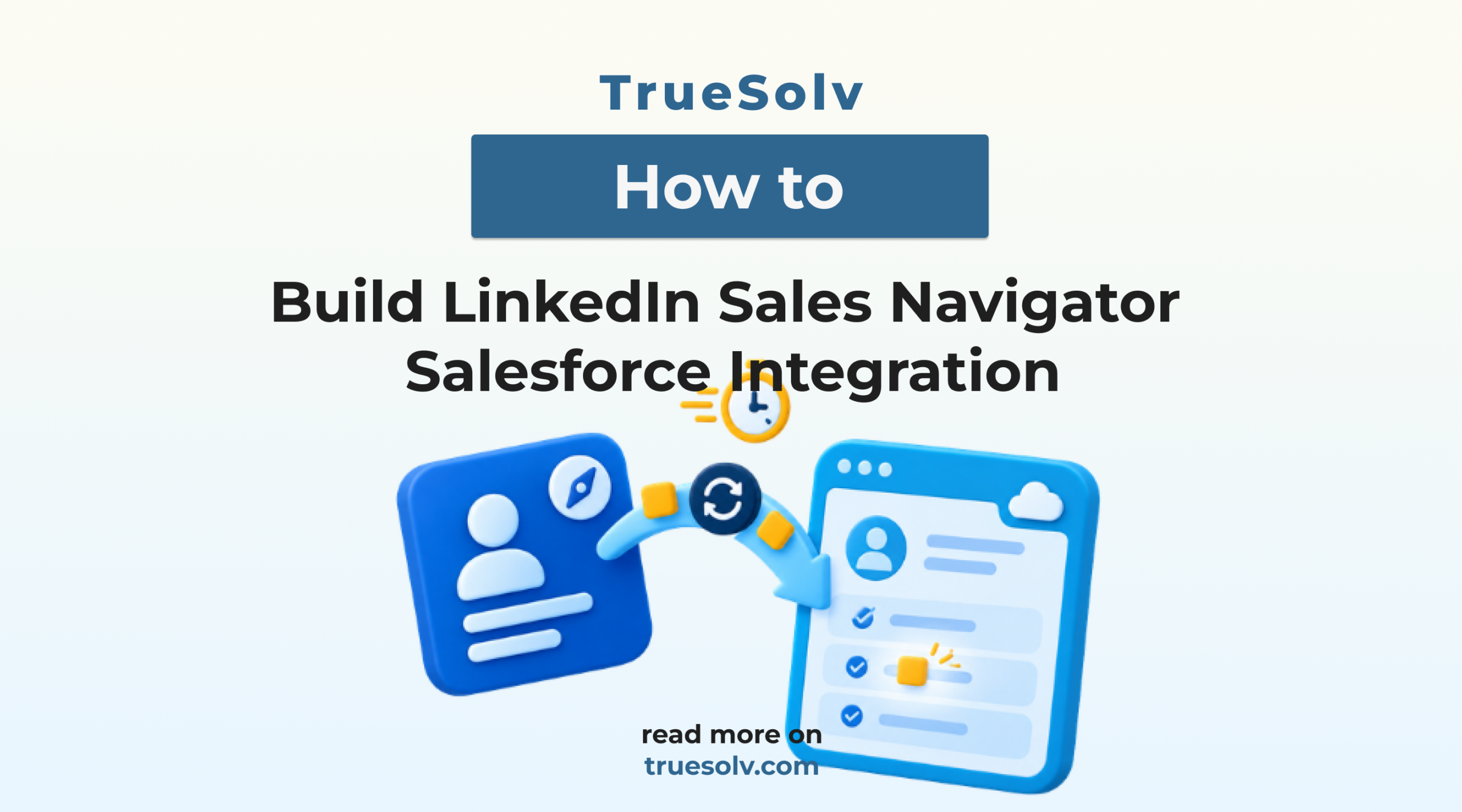
A proper LinkedIn Sales Navigator Salesforce sync gives them that afternoon back. The setup takes about an hour of admin time, if you know which license and which settings matter.
- CRM sync with Salesforce requires the Sales Navigator Advanced Plus plan, Core and Advanced do not include it
- Setup needs a Salesforce system administrator and a Sales Navigator admin
- Activity writeback logs InMails, messages and notes on the Salesforce record
- CRM sync runs daily, so new records can take up to a day to appear in Sales Navigator
What does the LinkedIn Sales Navigator Salesforce integration do?
The LinkedIn Sales Navigator Salesforce integration connects your Sales Navigator seats to your Salesforce org. It shows LinkedIn insights directly on lead, contact, account and opportunity records, writes LinkedIn activity back to Salesforce, and syncs accounts and leads so reps can see in LinkedIn which people are already in the CRM.
What do you need before you start?
Requirements
Step 1. Install the Sales Navigator app in Salesforce
Install the LinkedIn Sales Navigator app from Salesforce AppExchange into your org, ideally into a sandbox first. A system administrator needs to run the install and grant access to the users who will see LinkedIn data.
Step 2. Connect Salesforce in Sales Navigator
In Sales Navigator, open the Admin Settings, go to the CRM settings and connect to Salesforce with OAuth. This is where CRM sync is switched on and where you choose which Salesforce records import into Sales Navigator.
Want this integration set up properly?
Book a call. We connect Sales Navigator and Salesforce and check that every rep sees the right data.
Step 3. Add LinkedIn components to lead, contact and account pages
In the Lightning App Builder, add the Sales Navigator Lightning components to the lead, contact, account and opportunity pages. Reps then see LinkedIn profiles, account insights and related people without leaving Salesforce.
Step 4. Turn on activity writeback and data validation
Back in the CRM settings, choose which activities write back to Salesforce, such as InMails, messages, notes and Smart Link views. Then turn on data validation, which flags Salesforce contacts who have left their company or whose title has changed. 📇
Pilot with a few reps first. Check that a Salesforce contact appears in Sales Navigator, send an InMail and confirm it logs on the contact record.
What do reps see after setup?
| Task | Before | After |
|---|---|---|
| Researching a lead | Switching between LinkedIn and Salesforce | LinkedIn insights on the Salesforce record |
| Logging outreach | Copying InMails into Salesforce by hand | Activity written back automatically |
| Spotting job changes | Finding out when emails bounce | Contacts flagged by data validation |
| Avoiding duplicates | Checking Salesforce manually | Sales Navigator shows who is already in the CRM |
What are the common issues and fixes?
| Issue | Cause | Fix |
|---|---|---|
| Users not matched | Different emails in LinkedIn and Salesforce | Match users in the Sales Navigator admin settings |
| Blank LinkedIn components | User has no Advanced Plus seat or no app access | Assign the seat and the permission |
| New records missing in Sales Navigator | CRM sync runs daily | Wait for the next sync before troubleshooting |
| Duplicates from manual imports | Reps still add leads by hand | Use duplicate rules and stop manual imports |
For other connections, see our HubSpot Salesforce integration guide, the upcoming QuickBooks guide, and our Salesforce integration services.
Common questions
Which Sales Navigator plan works with Salesforce?
CRM sync and the embedded LinkedIn components in Salesforce require the Sales Navigator Advanced Plus plan. Core and Advanced plans do not include CRM sync. Advanced Plus is sold through LinkedIn sales with custom pricing, so confirm seat counts before planning the rollout.
How often does Sales Navigator sync with Salesforce?
CRM sync runs daily, so new Salesforce records can take up to a day to appear in Sales Navigator. Activity writeback is near real time, so InMails and messages show up on the Salesforce record shortly after they are sent.
Does the integration create leads in Salesforce automatically?
The integration focuses on matching, insights and activity writeback. Reps can create leads or contacts from Sales Navigator into Salesforce where your settings allow it, but it does not bulk import LinkedIn profiles. Keep duplicate rules active so records stay clean.
Every lead that moves from LinkedIn to Salesforce without retyping gets a faster first call. 🚀
Book an integration call
Tell us which tools your team uses and we will connect them properly.
If you want this or any other integration set up properly, book a call with us, and follow TrueSolv on LinkedIn for more integration guides.
Tell us which tools you want connected
Leave your details and the tools your team uses. We will set up a call and plan the integration with you.